Summary
Learning how to make Windows 11 faster often comes down to removing unnecessary background processes, optimizing startup behavior, and ensuring system resources are used efficiently. Many slowdowns are not caused by weak hardware but by small configuration issues that gradually accumulate. With a few practical adjustments, most systems can feel noticeably faster and more responsive within minutes.
Why Many Windows 11 PCs Gradually Become Slower
A common misconception is that performance problems in modern operating systems are mainly caused by aging hardware. In reality, many slow systems are simply dealing with accumulated background processes, excessive startup apps, and inefficient resource usage.
Windows 11 was designed to handle multitasking, cloud integrations, and AI-assisted features, but those capabilities also introduce additional background activity. Over time, software installations, auto-updaters, and hidden system services compete for memory and CPU resources.
The result is a system that technically works—but feels slower than it should.
Many users searching for ways to improve Windows 11 performance focus only on obvious fixes like deleting files or installing cleaning software. While those steps may help slightly, the real gains usually come from understanding how Windows manages startup tasks, visual effects, memory usage, and storage health.
The following practical adjustments focus on those areas and can dramatically improve responsiveness without requiring advanced technical knowledge.
Startup Programs: The Hidden Cause of Slow Boot Times
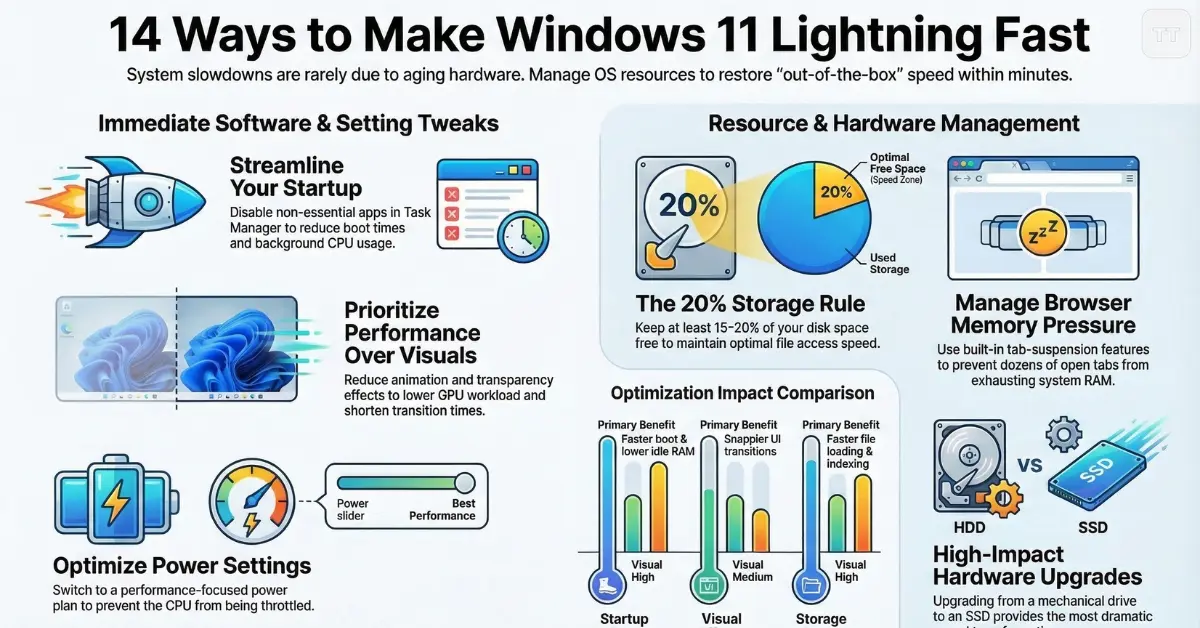
One of the biggest reasons systems feel sluggish is that too many applications launch automatically during startup. Messaging apps, cloud tools, gaming launchers, and update services often configure themselves to run immediately when the computer boots.
This behavior increases boot time and consumes system resources before the user even begins working.
Reducing startup programs can dramatically speed up Windows 11 startup and improve general responsiveness throughout the day.
To review startup applications:
- Open Task Manager
- Select the Startup Apps tab
- Disable programs that are not essential
Many systems start with more than ten startup processes, even though only a few are actually needed. Disabling unnecessary ones reduces memory usage and background CPU activity.
When Visual Effects Quietly Reduce System Speed
Windows 11 emphasizes visual polish—animations, transparency effects, and smooth transitions between windows. While these design choices create a modern interface, they also consume GPU and memory resources.
On powerful hardware, the impact is small. On mid-range or older devices, however, the cumulative effect can contribute to noticeable lag.
Adjusting visual effects is a simple yet effective Windows 11 lag fix that many users overlook.
Reducing animation effects can:
- shorten window transition times
- improve responsiveness in file browsing
- reduce background GPU workload
These settings can be adjusted under Performance Options, where Windows allows prioritizing either appearance or performance.
Storage Health Plays a Larger Role Than Most Users Expect
System responsiveness is heavily influenced by storage performance. When the main drive approaches capacity, Windows spends more time managing file access and virtual memory.
This issue becomes particularly noticeable when opening applications or switching tasks.
Keeping at least 15–20% free disk space helps Windows maintain optimal performance. Temporary files, unused downloads, and outdated installation packages often occupy large amounts of storage without users realizing it.
Removing them improves system responsiveness and can be one of the easiest Windows 11 optimization tips.
Background Apps That Continue Running After You Close Them
Many modern applications behave differently from traditional desktop programs. Instead of fully closing, they continue running small background processes to check updates, sync files, or deliver notifications.
These background tasks gradually accumulate.
Limiting unnecessary background activity can significantly improve Windows 11 performance, particularly on systems with limited RAM.
Inside Windows settings, users can manage which applications are allowed to run in the background. Messaging apps or cloud services may be worth keeping active, but many other applications do not require continuous operation.
Memory Pressure and Why Too Many Tabs Slow Everything Down
Web browsers have become one of the most demanding components of modern computing. Each tab functions almost like a separate application, consuming memory and processing resources.
A system that appears slow may actually be struggling with memory pressure caused by dozens of open browser tabs.
Some browsers now include built-in tab management features that automatically suspend inactive tabs. Enabling these features can reduce RAM usage and noticeably improve responsiveness during multitasking.
Updating Drivers Often Improves Performance More Than Expected
Hardware drivers act as the communication layer between Windows and system components such as graphics cards, network adapters, and storage controllers.
Outdated drivers can create inefficiencies that reduce system responsiveness.
Regular driver updates can help:
- Improve graphics performance
- Fix compatibility issues
- Stabilize system operations
For example, updated GPU drivers often improve interface responsiveness and video playback performance.
Power Settings That Quietly Limit System Performance
Many laptops ship with conservative power settings designed to maximize battery life. While efficient, these settings sometimes restrict CPU performance even when the device is plugged in.
Switching to a balanced or performance-focused power plan can noticeably increase responsiveness, especially during multitasking or productivity work.
This change often delivers a simple improvement in Windows 11 performance optimization without requiring hardware upgrades.
Temporary Files: Small Data That Slowly Adds Up
Temporary files are created constantly by browsers, applications, and the operating system itself. Individually, they are small, but collectively, they can occupy several gigabytes of storage.
Windows includes built-in tools that remove temporary data safely.
Running periodic cleanup helps:
- Free disk space
- Reduce system clutter
- Improve file indexing efficiency
While the improvement may not feel dramatic immediately, systems maintained this way tend to remain consistently fast over time.
When Too Many Installed Applications Become a Performance Problem
Most users rarely revisit their installed applications list. Over time, however, unused programs accumulate, each potentially adding background services or scheduled tasks.
Removing unnecessary applications reduces resource consumption and helps simplify system management.
This approach becomes particularly important for systems used for gaming or remote work, where stability and responsiveness are more noticeable.
Search Indexing: Helpful but Sometimes Overactive
Windows search indexing speeds up file searches by maintaining a database of files and folders. On systems with large file libraries, however, indexing activity can temporarily increase disk usage.
Adjusting indexing settings—especially excluding large folders that rarely need searching—can reduce background activity and contribute to smoother system operation.
The Real Impact of System Restarts
Modern computers are often left running for days or weeks without restarting. While Windows 11 manages memory efficiently, long sessions can still accumulate background processes and cached data.
A simple restart clears temporary system states and often resolves unexplained slowdowns.
Many users underestimate how frequently a quick reboot can restore system responsiveness.
When Malware or Unwanted Software Causes Persistent Lag
Occasionally, persistent performance problems originate from unwanted software or poorly designed utilities running silently in the background.
Running periodic security scans helps ensure system resources are not being consumed by hidden processes.
This step is particularly important when sudden performance drops appear without a clear explanation.
When Hardware Becomes the Real Limitation
While software optimizations can significantly improve responsiveness, there are cases where hardware upgrades deliver the most noticeable results.
Two upgrades consistently provide dramatic improvements:
- increasing RAM capacity
- upgrading from a traditional hard drive to a solid-state drive
Systems still using older mechanical drives often experience the largest speed improvements when switching to SSD storage.
This upgrade alone can transform overall responsiveness.
Practical Scenarios Where Performance Optimization Matters Most
The need to optimize system speed varies depending on how the computer is used.
Students and remote workers often notice slowdowns during multitasking, especially when video calls, browsers, and productivity tools run simultaneously.
Gamers tend to experience performance issues through background processes interfering with system resources.
Professionals working with large files or design tools may encounter delays caused by storage or memory limitations.
Recognizing these usage patterns helps determine which adjustments will produce the most noticeable improvements.
Internal Resources for Troubleshooting Windows Issues
When performance problems occur alongside system errors or unexpected behavior, deeper troubleshooting may be necessary. Helpful guidance can be found in this related resource:
How to Get Help in Windows 11 When Something Goes Wrong
Additional useful topics often explored alongside system optimization include:
Frequently Asked Questions
Does disabling startup apps really make Windows 11 faster?
Yes. Reducing startup apps can significantly shorten boot time and reduce background resource usage. Many applications launch automatically even when they are rarely needed.
Why does Windows 11 sometimes feel slow even on newer PCs?
Slowdowns often occur due to background applications, excessive browser tabs, or limited free storage. These issues can affect even relatively new systems.
Is upgrading RAM worth it for improving performance?
In many cases, yes. Systems with limited memory struggle when multiple applications run simultaneously. Increasing RAM allows Windows to handle multitasking more smoothly.
Can cleaning temporary files improve system speed?
It can help indirectly. Removing temporary files frees disk space and improves system efficiency, particularly on drives that are nearly full.
Does restarting the computer actually improve performance?
Yes. Restarting clears temporary system processes and resets memory usage, which can resolve many minor performance issues.
Conclusion
Making Windows 11 feel fast again rarely requires complicated tools or risky system modifications. Most performance problems emerge gradually from small inefficiencies—startup programs, background apps, limited storage space, or outdated drivers.
Addressing these areas often produces immediate improvements in responsiveness.
The most important insight is that system speed is rarely determined by a single factor. Instead, performance depends on how efficiently resources are managed across software, storage, and background activity.
Users who periodically review these areas tend to maintain systems that remain smooth and responsive for years. With a few practical adjustments and occasional maintenance, even everyday computers can deliver a noticeably faster and more reliable experience. 🚀💻