

Quick & Helpful Answer
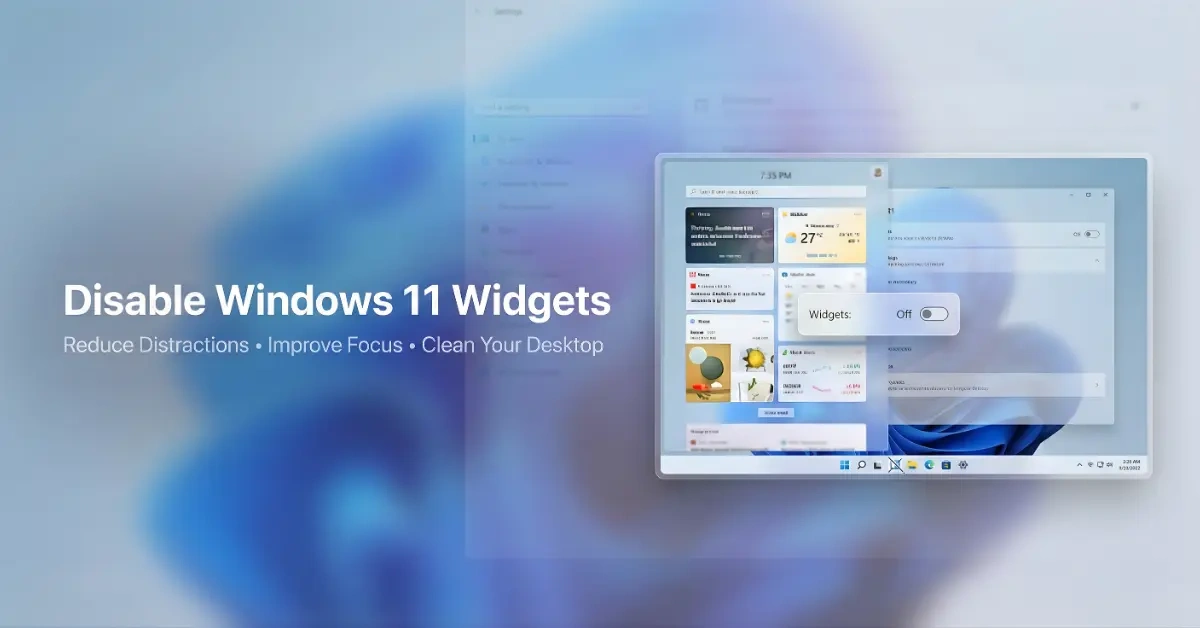
Disabling widgets in Windows 11 might seem like a small tweak, but it often hides a surprisingly powerful way to reduce distractions, reclaim system resources, and regain focus. With the right approach, anyone can turn off or manage the widget experience in minutes—and most users don’t realize how flexible the settings really are. This guide explains windows widgets disable options clearly, step by step, without technical confusion.
Why So Many Users Want Widgets Gone?
At first, widgets feel helpful.
Weather updates. News headlines. Sports scores.
But over time, many Windows 11 users notice something else—constant interruptions, unnecessary background activity, and visual clutter competing for attention.
Some people never open the widget board at all. Others open it once, then forget about it. Yet it still loads, still updates, and still consumes mental bandwidth in the background.
So the question becomes simple:
If widgets aren’t adding value, why keep them running?
Here’s what this guide covers:
-
What Windows widgets actually do in Windows 11
-
How to disable Windows widgets safely
-
How to manage widgets instead of removing everything
-
Whether widgets can be uninstalled completely
-
Why widgets sometimes return after updates
-
Common myths users believe about widget settings
Important: Before You Continue, Check Your Windows 11 Edition (Home vs Pro)
Not all widget-related options are available on every Windows edition.
Important clarification:
-
Windows 11 Home does not include Group Policy Editor
-
Windows 11 Pro, Education, and Enterprise support advanced system policies
Windows Home users should rely on:
-
Taskbar settings
-
Widgets settings windows 11 controls
What Are Windows Widgets in Windows 11 & Why They Exist
Windows widgets are small, interactive panels designed to deliver quick information without opening full applications.
They are commonly associated with:
-
News and trending stories
-
Weather updates
-
Sports scores
-
Financial snapshots
-
Microsoft ecosystem content
The windows widget board appears from the taskbar icon or through a gesture or shortcut. While Microsoft designed widgets for convenience and quick access, not every user benefits from constant at-a-glance updates.
For many users—especially professionals and students—widgets feel more like background noise than useful tools.
Read More: Top Windows 11 Tips Every User Should Know in 2026
The Real Reasons People Disable Windows Widgets
Before learning how to turn them off, it helps to understand why users choose to do so.
Common motivations include:
-
Reducing distractions during work or study
-
Improving system performance on mid-range or older devices
-
Cleaning up the taskbar interface
-
Avoiding unwanted news or content feeds
-
Maintaining a minimalist desktop experience
These reasons are closely related to productivity psychology. Less visual input often leads to deeper focus and better task completion.
Does Disabling Widgets Improve Performance?
Direct Answer:
Yes, disabling widgets can slightly improve performance by reducing background processes, especially on older or budget Windows 11 systems.
Widgets rely on background processes to refresh content.
-
On high-end systems, the impact is minimal
-
On budget laptops or older PCs, the difference can be noticeable
Users commonly report:
-
Faster taskbar responsiveness
-
Fewer background processes
-
Reduced mental clutter
Performance improvement is commonly associated with fewer live services running in the background.
Read More: How to Quickly Delete Junk Files and Free Up Space in Windows 11
How to Disable Windows Widgets from the Taskbar (Fastest Method)
Quick Answer:
To disable widgets in Windows 11, right-click the taskbar, open Taskbar settings, and toggle Widgets off. The icon disappears instantly, and no restart is required.
For most users, this is the simplest and safest option.
Step-by-step:
-
Right-click on the taskbar
-
Select Taskbar settings
-
Locate Widgets in the taskbar items list
-
Toggle the switch Off
Direct answer: This instantly removes the widget icon and disables access to the windows’ widget board.
No restart is required.
No system risk is involved.
How to Disable Windows Widgets Using Widgets Settings
Some users don’t want widgets gone entirely—they just want control.
How to access widgets settings:
-
Open the widget board
-
Click the profile or settings icon
-
Navigate to widgets settings windows 11
From here, users can:
-
Control content personalization
-
Manage data preferences
-
Adjust how widgets behave
This approach works well for users who want fewer distractions without choosing to fully remove widgets.
Disable Windows Widgets Without Affecting Other Features
A common concern is whether disabling widgets might break Windows.
That fear is unfounded.
Widgets operate independently from:
-
File Explorer
-
Start Menu
-
System notifications
-
Core Windows applications
Short answer: Disabling windows widgets does not affect system stability or core functionality.
How to Turn Off Widget Mode for a Cleaner Interface
Some users refer to widgets as “widget mode,” especially when the board opens unexpectedly.
To turn off widget mode completely:
-
Disable widgets from taskbar settings
-
Ensure no shortcuts or hover triggers are enabled
This prevents accidental activation and keeps the desktop clean and distraction-free.
How to Manage Widgets Instead of Removing Them
Not everyone wants an all-or-nothing approach.
You can manage widgets effectively by:
-
Removing individual widgets
-
Limiting news sources
-
Disabling personalized content
-
Reducing widget refresh behavior
This balanced approach is ideal for users who want information access without constant visual noise.
Can You Uninstall Windows Widgets Completely?
Short Answer:
Windows widgets cannot be fully uninstalled for most users. Disabling them is safer and recommended, as widgets are integrated into the Windows 11 system shell.
This is one of the most searched questions, especially among users trying to remove built-in features.
While advanced users may experiment with command-line methods, Windows widgets uninstall options are limited for standard users, and full removal is not advised.
Why?
-
It provides little benefit beyond disabling
-
It increases system complexity and risk
-
Major Windows updates may reinstall the components
For most users, disabling widgets is the smarter and safer solution.
People Also Ask About Windows 11 Widgets
How do I turn off Widgets in Windows 11?
You can turn off Widgets by right-clicking the taskbar, selecting Taskbar settings, and toggling Widgets off. The icon disappears instantly without affecting other Windows features.
How do I disable a widget?
Open the widget board, click the settings or profile icon, and remove or toggle off individual widgets you don’t want.
How to stop Widgets from popping up?
Disable the “Open on hover” feature in the widgets settings or toggle Widgets off in the taskbar to prevent accidental pop-ups.
How do I disable the widget shortcut?
Check the keyboard shortcuts or gestures that open the widget board, and disable them in the Settings menu under Widgets or Keyboard shortcuts.
What is the Windows Widgets process?
It’s a background process responsible for updating news, weather, and other widget content. Disabling widgets stops this process from running continuously.
Do Windows Widgets Reappear After Windows Updates?
Yes—sometimes.
Quick Explanation:
Widgets may reappear after major Windows updates because taskbar settings reset. Turning them off again restores your previous setup.
Why this happens:
-
Feature updates refresh system UI settings
-
Taskbar toggles may revert to defaults
What to do:
-
Revisit Taskbar settings
-
Toggle Widgets off again if needed
Do Windows Widgets Collect Data or Track Interests?
Windows widgets personalize content based on user preferences.
This may include:
-
Location-based weather
-
News topic interests
-
Account-based personalization
While this data is handled within Microsoft’s privacy framework, privacy-conscious users often disable widgets to limit content tracking and reduce algorithm-driven feeds.
How to Close Gaming Widget Windows (Xbox Game Bar Explained)
Many users confuse widgets with gaming overlays.
If the issue is how to close gaming widget windows, the cause is usually the Xbox Game Bar, not standard Windows widgets.
To manage gaming widgets:
-
Open Settings
-
Go to Gaming
-
Select Xbox Game Bar
-
Toggle it off if unused
Windows Widget Board vs Productivity: The Trade-Off
The windows widget board was designed for quick information access.
However, productivity research shows frequent micro-distractions reduce deep focus.
For users prioritizing:
-
Writing
-
Coding
-
Studying
-
Business tasks
Disabling widgets often leads to a calmer, more intentional computing experience.
Common Myths About Windows Widgets (Debunked)
Myth: Widgets are required for Windows updates
Truth: Updates function independently
Myth: Disabling widgets breaks the Start Menu
Truth: No connection exists
Myth: Widgets consume massive storage
Truth: Storage impact is minimal—attention cost is higher
Best Recommended Practice
Most productivity-focused users benefit from:
-
Disabling widgets from the taskbar
-
Leaving system components intact
-
Managing gaming widgets separately
This approach aligns with modern Windows optimization best practices.
Conclusion:
Disabling widgets in Windows 11 isn’t about rejecting features—it’s about intentional computing.
By understanding how windows widgets disable options work, users gain:
-
Better focus
-
Cleaner interfaces
-
More control over their digital environment
Now that you understand how to disable and manage Windows widgets, this knowledge can help you make smarter, more confident decisions about how your PC works for you—not against you.
Sometimes, the most powerful upgrade isn’t new software—it’s removing what no longer serves a purpose.
FAQs
[sc_fs_multi_faq headline-0=”h2″ question-0=”Can Windows widgets be turned back on later?” answer-0=”Yes. Windows widgets can be turned back on anytime through taskbar settings. ” image-0=”” headline-1=”h2″ question-1=”Does disabling widgets affect notifications?” answer-1=”No. Notifications remain fully functional and independent. ” image-1=”” headline-2=”h2″ question-2=”Are widgets harmful to system security?” answer-2=”No. Widgets are secure but may display content some users prefer not to see. ” image-2=”” headline-3=”h2″ question-3=”Is removing widgets better than managing them?” answer-3=”For most users, no. Managing widgets provides flexibility without risk. ” image-3=”” headline-4=”h2″ question-4=”Why do widgets reappear after updates?” answer-4=”Major updates may reset taskbar settings, requiring a quick toggle-off again. ” image-4=”” count=”5″ html=”true” css_class=””]

