Summary
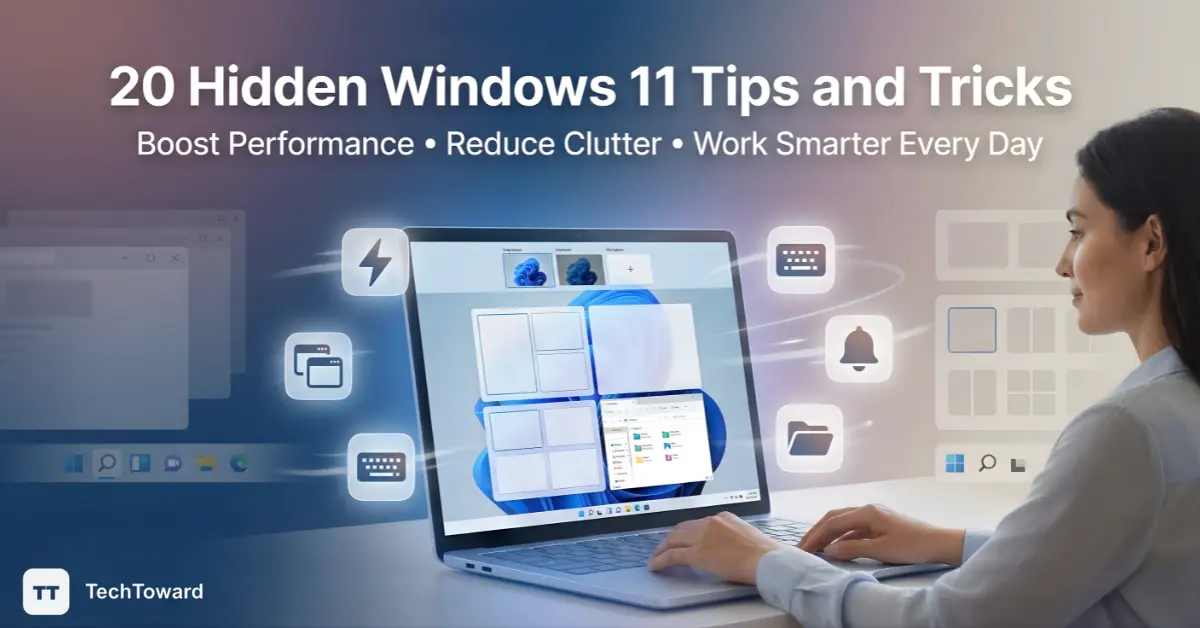
20 Hidden Windows 11 Tips and Tricks to Boost Performance and Productivity might sound technical, but beneath the surface lies a surprisingly simple way to make your PC feel faster, calmer, and more personal. With the right Windows 11 tweaks, you can reclaim time, reduce friction, and unlock features most people never notice—without installing anything extra or risking stability.
If you’re already using Windows 11, you’re sitting on powerful tools designed to help you work smarter. The catch? Many of them are quietly tucked away.
Why Windows 11 Feels Powerful—Yet Sometimes Frustrating
Ever feel like your computer should be faster than it is?
You buy a solid machine, install Windows 11, and for a while everything feels smooth. Then notifications pile up. Multitasking feels clumsy. Simple actions take more clicks than they should. You start blaming your hardware—when in reality, Windows 11 is capable of much more than its default setup shows.
I’ve spent years optimizing Windows systems for writers, developers, small business owners, and everyday users. And almost every time, the biggest performance gains come not from expensive upgrades—but from hidden settings and smart habits built directly into Windows 11.
Here’s what you’ll discover:
- Subtle Windows 11 tips and tricks that quietly speed things up
- Productivity features Microsoft doesn’t explain well
- Simple changes that reduce mental load and digital clutter
- 20 practical tips you can apply today—no tech jargon required
Let’s unlock what Windows 11 was meant to feel like.
Why These Windows 11 Tips Matter More Than You Think
Windows 11 isn’t just a visual refresh—it’s a shift toward AI-assisted workflows, efficiency, and focus. According to Microsoft’s own documentation, Windows 11 is optimized for modern CPUs, background task management, and multitasking behavior.
But defaults are designed for the average user, not your workflow.
That’s where these 20 tips come in.
The 20 Hidden Windows 11 Tips and Tricks (That Actually Make a Difference)
1. Turn On Storage Sense to Prevent Silent Slowdowns
Short answer: Storage Sense automatically cleans junk files before they hurt performance.
Most people never enable this. Storage Sense quietly removes temporary files, old cache data, and unused system files.
Path:
Settings → System → Storage → Storage Sense
This is one of those “set it once, benefit forever” Windows 11 tips.
2. Snap Layouts: Multitasking Without Mental Fatigue
Hover over the maximize button on any window.
That grid you see? It’s Snap Layouts—and it’s criminally underused.
Why it matters:
- Faster multitasking
- Fewer window-dragging distractions
- Better focus across tasks
Once you get used to it, going back feels chaotic.
3. Virtual Desktops That Match Your Brain
Short answer: Virtual desktops let you separate work, personal, and creative spaces.
Create different desktops for deep work, meetings, and personal browsing.
Shortcut: Win + Tab
This tip alone has helped many users reduce cognitive overload.
4. Quiet the Noise with Focus Sessions
Most people think Focus Sessions are just timers.
They’re not.
Focus Sessions integrate Microsoft To Do, Spotify, and notification control.
You’ll find it inside the Clock app.
5. Disable Startup Apps You Don’t Need
Short answer: Fewer startup apps mean faster boot times.
Path:
Settings → Apps → Startup
You’ll often find apps launching that you forgot even existed.
6. Hidden Clipboard History (You’ll Use This Daily)
Press Win + V.
Windows 11 keeps a history of copied items—text, links, even images.
Once you use it, regular copy-paste feels ancient.
7. Power Mode Isn’t Just for Laptops
Short answer: Power mode affects performance even on desktops.
Path:
Settings → System → Power & Battery → Power Mode
Choose Best performance if you want speed over energy savings.
8. Visual Effects: Beauty vs. Speed
Windows 11 animations look great—but they cost resources.
Path:
Settings → Accessibility → Visual effects
Turning off unnecessary animations can make older systems feel brand new.
9. File Explorer Tabs (Yes, Finally)
If you’re still opening multiple File Explorer windows—you don’t have to.
Windows 11 supports tabs, similar to a browser.
Right-click and choose Open in new tab.
10. Search That Actually Finds Things
Short answer: Windows Search can be tuned to work faster and smarter.
Path:
Settings → Privacy & Security → Searching Windows
Switch to Enhanced indexing if you frequently search files.
11. Right-Click Menu: Restore the Full Version
The simplified right-click menu hides useful options.
Trick: Hold Shift and right-click to see the classic menu.
Small change. Big productivity win
12. Background App Permissions = Hidden Performance Drain
Apps running in the background quietly eat memory.
Path:
Settings → Apps → Installed apps → Choose an app → Background app permissions
Limit background access to essentials only.
13. Keyboard Shortcuts That Feel Like Superpowers
A few underrated ones:
- Win + Z opens Snap layouts
- Win + X opens the power user menu
- Win + . opens the emoji and symbol picker
Keyboard fluency equals speed.
14. Notification Summary Instead of Constant Interruptions
Short answer: Let Windows notify you once, not 50 times.
Use notification scheduling to batch alerts.
Path:
Settings → System → Notifications
This is a focus saver.
15. Cloud Clipboard Across Devices
Sign into the same Microsoft account.
Your clipboard syncs across devices automatically.
This feature alone saves minutes every day.
16. Optimize Drives Automatically (Not Just HDDs)
Even SSDs benefit from scheduled optimization.
Path:
Settings → System → Storage → Advanced storage settings → Optimize Drives
Windows 11 handles this quietly when enabled.
17. Dynamic Refresh Rate (If Your Screen Supports It)
Windows 11 can automatically lower refresh rates to save power.
Path:
Settings → System → Display → Advanced display
It’s performance-aware, not just flashy.
18. Hide Taskbar Distractions
Widgets, chat, and search can clutter attention.
Right-click the taskbar, open Taskbar settings, and disable what you don’t use.
Your eyes will thank you.
19. Nearby Sharing for Instant File Transfers
Short answer: Share files wirelessly between nearby devices.
This works especially well between Windows PCs on the same network.
Path:
Settings → System → Nearby sharing
20. Reset Without Reinstalling Everything
If Windows 11 feels sluggish over time, use Reset this PC while keeping your files.
Path:
Settings → System → Recovery
This often restores near-new performance.
The Hidden Truth About Windows 11 Productivity
Most people think performance problems require new hardware, third-party tools, or risky registry hacks.
But the truth is simpler.
Windows 11 already includes performance and productivity features—if you know where to look.
Frequently Asked Questions
Is Windows 11 actually faster than Windows 10?
Short answer: Yes.
On modern hardware, Windows 11 manages resources more efficiently. The difference becomes noticeable when you optimize background apps and multitasking features
Do these Windows 11 tips and tricks slow down my PC?
Most people think they might, but here’s the truth:
These tips reduce load, clutter, and unnecessary processes. They’re designed to improve performance.
Are these tips safe for beginners?
Yes, and that’s why they matter.
Everything here uses built-in Windows 11 settings. No risky software. No system file edits.
How many of these tips should I use?
Start with five to seven that match your daily habits.
The biggest gains come from consistency, not doing everything at once.
Does Windows 11 need third-party optimization tools?
Short answer: No.
Windows 11 already includes most of what those tools promise—without the risks.
Final Thoughts
Windows 11 isn’t slow, broken, or bloated.
It’s just misunderstood.
When you uncover the hidden Windows 11 tips and tricks built into the system, something shifts. Your computer stops feeling like a distraction and starts feeling like a tool that actually supports how you think and work.
Now that you know how 20 Hidden Windows 11 Tips and Tricks to Boost Performance and Productivity really work, don’t just scroll away. Try a few today and feel the difference for yourself.
You’ll be surprised how simple it feels.