

Summary
Updating drivers in 2026 is no longer about chasing the newest version it’s about maintaining compatibility between hardware, operating systems, and modern software workloads. Incorrect driver updates are a leading cause of crashes, performance drops, and hardware instability on both Windows and macOS. This guide explains when driver updates are necessary, when they should be avoided, and how to update drivers safely without breaking system stability or performance.
Why Driver Updates Still Break Systems in 2026
A Windows laptop slows down after a feature update.
A gaming PC loses FPS despite powerful hardware.
A Mac starts dropping Wi-Fi connections after an OS upgrade.
In most cases, the operating system isn’t the real problem—the driver layer is.
The Core Problem Most Guides Miss
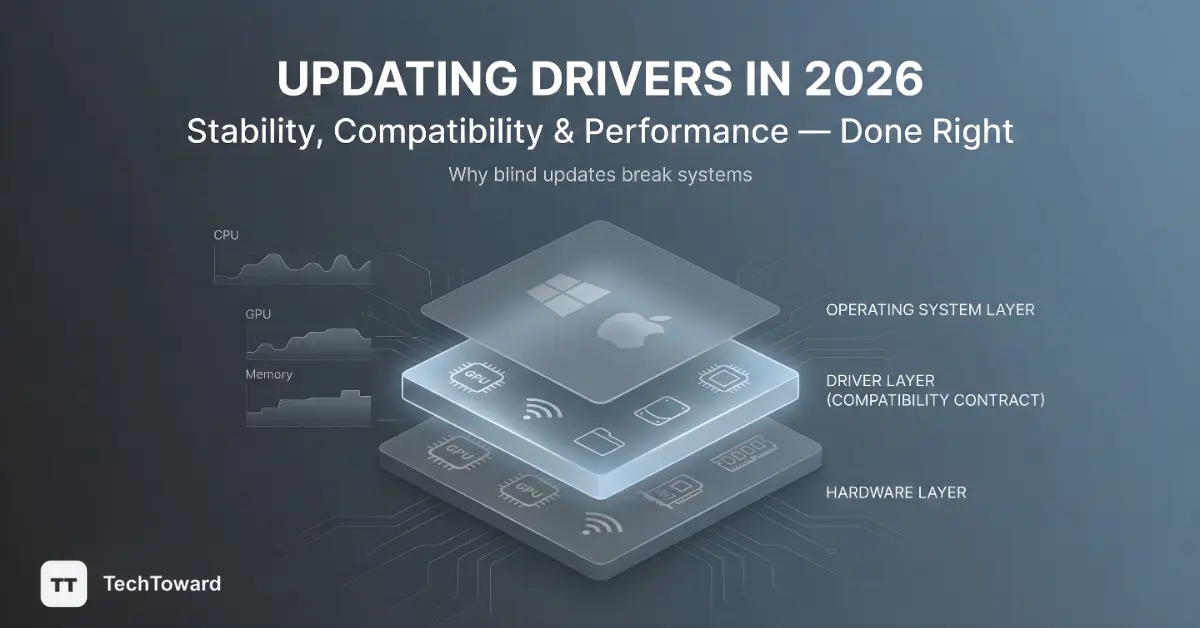
Drivers are compatibility contracts, not simple updates.
They translate:
-
Hardware instructions
-
OS-level commands
-
Application-level workloads
When that translation breaks—even slightly—systems degrade in subtle but damaging ways.
In 2026, driver issues are more common, not less, because of:
-
Faster OS release cycles
-
Aggressive GPU optimization schedules
-
Mixed hardware generations
-
Cloud-delivered and generic drivers replacing OEM-specific ones
This is why blindly updating drivers causes more harm today than it did five years ago.
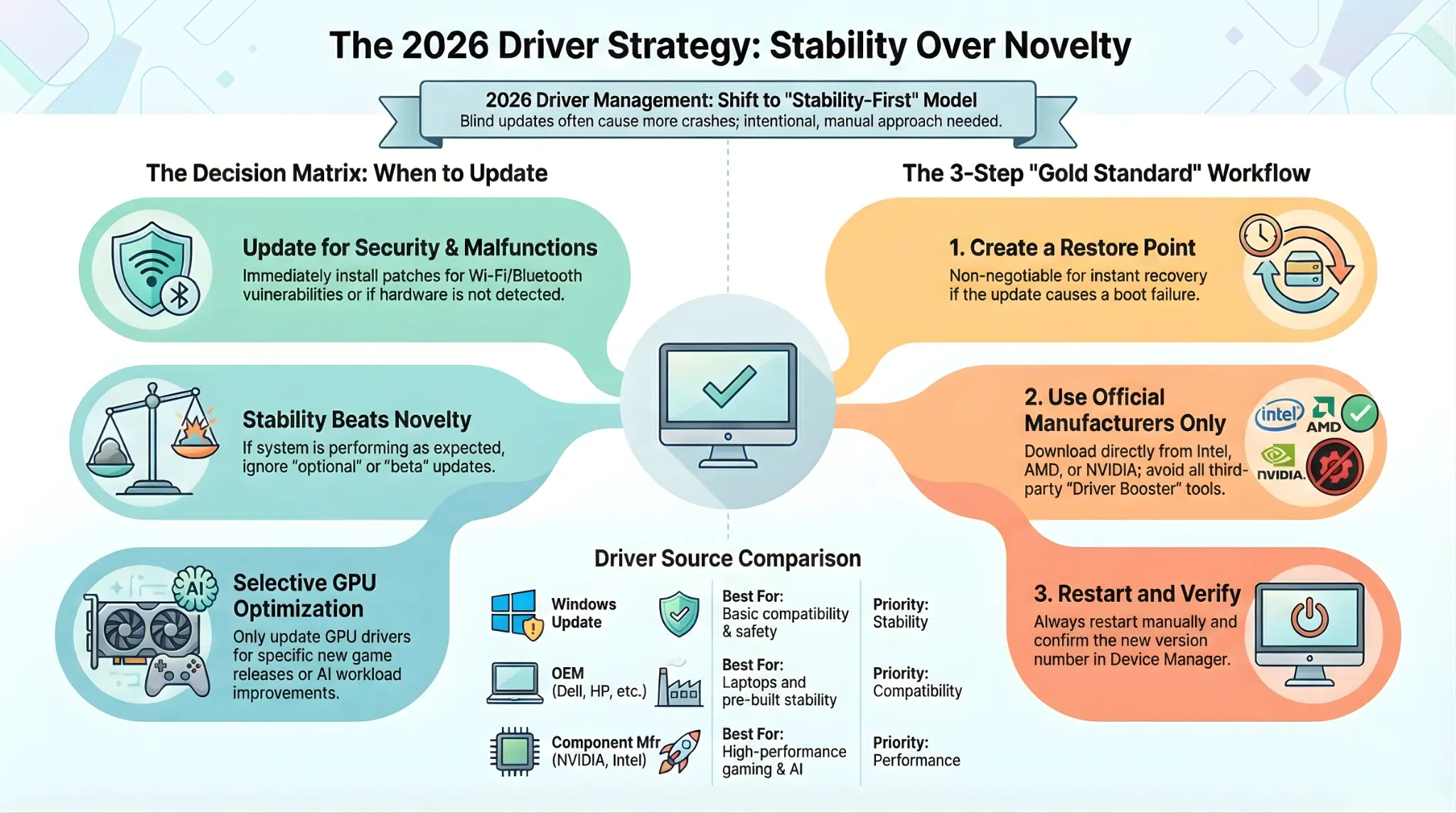
Check our Quick Guide for immediate insights, or refer to the Detailed Guide for comprehensive instructions.
Quick Guide:
How to Update Safely: Windows 11 & 12
For the best results, avoid “Driver Booster” style apps. Manual updates from the Manufacturer (OEM) are the gold standard.
-
Identify: Press
Win + Xand select Device Manager. Look for yellow exclamation marks. -
Download: Go to the official site (e.g., NVIDIA, Intel, or your laptop manufacturer like Dell/HP).
-
Install: Run the installer. If it’s a raw file, right-click the device in Device Manager > Update driver > Browse my computer.
-
The Safety Net: Always create a System Restore Point before starting.
-
Search “Create a restore point” > Select C: drive > Create.
-
Read More: Update drivers through Device Manager in Windows
Detailed Guide:
When You Should Update Drivers (And When You Shouldn’t)
Quick Table:
| Scenario | Action | Why? |
| New Game/Software Release | Update GPU | Optimization for specific titles can boost FPS by 15%+. |
| Security Patch | Update Immediately | Vulnerabilities in Wi-Fi or Bluetooth drivers can lead to remote exploits. |
| Stable System | Wait/Ignore | “Optional” updates can sometimes introduce bugs into a perfectly stable setup. |
| Hardware Issues | Troubleshoot | If your Wi-Fi drops, the driver is the first suspect. |
You Should Update Drivers If:
-
Hardware is not detected or malfunctioning
-
Performance drops after an OS update
-
Games, apps, or peripherals crash repeatedly
-
A manufacturer confirms a bug fix or security patch
-
New hardware was installed
You Should Avoid Driver Updates If:
-
The system is stable and performing as expected
-
The update is unrelated to your issue
-
The driver is marked beta or preview
-
The source is not the hardware manufacturer
2026 rule: Stability beats novelty. Always.
How Windows Handles Drivers in 2026
Windows now pulls drivers from multiple competing sources, which creates confusion.
Windows Driver Sources
-
Windows Update (generic, safety-first)
-
OEM manufacturer packages (laptop/motherboard vendors)
-
Component manufacturers (Intel, AMD, NVIDIA, Realtek)
Windows Update prioritizes compatibility, not performance.
That’s why advanced users often need to manually update device drivers Windows depends on.
The Safest Way to Manually Update Drivers on Windows
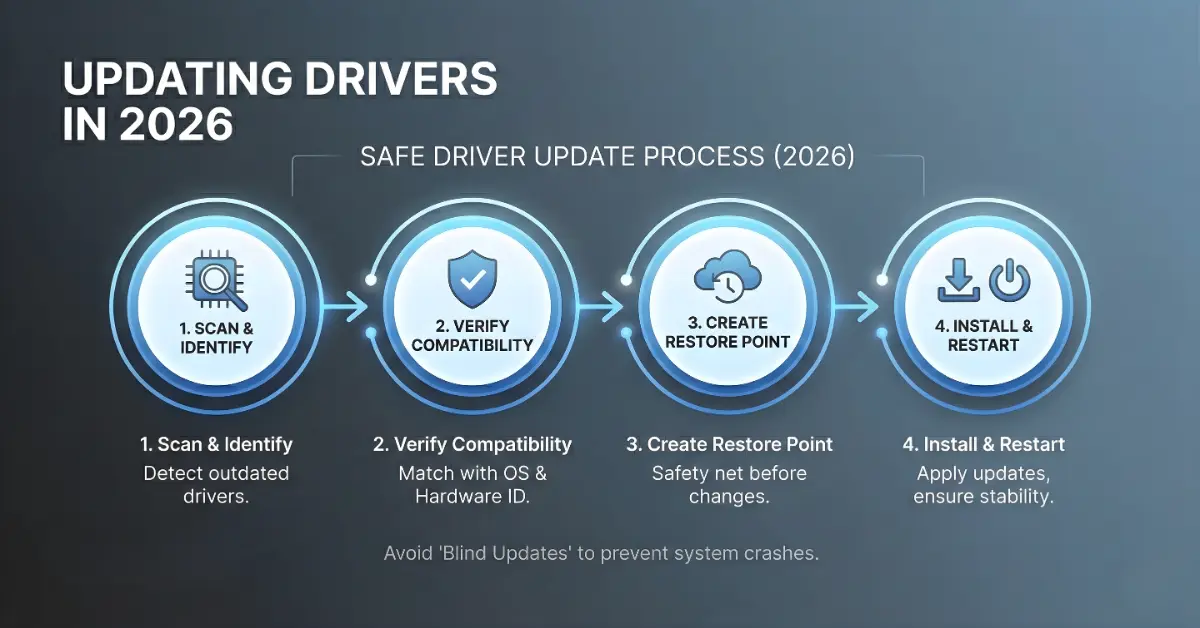
Step 1: Identify the Exact Hardware
Open Device Manager and confirm:
-
Exact model name
-
Hardware category
-
Warning indicators (yellow icons)
Never guess—driver mismatches cause silent instability.
Step 2: Download Only Official Drivers
Use:
-
Intel, AMD, NVIDIA (GPUs & chipsets)
-
Laptop or motherboard manufacturer sites
Avoid:
-
“Driver packs”
-
Third-party download portals
-
Pop-up driver tools
Step 3: Create a Restore Point
This is non-negotiable.
A restore point allows instant recovery if:
-
The system fails to boot
-
Performance drops
-
Compatibility issues appear later
Step 4: Install, Restart, Verify
Restart even if Windows doesn’t ask.
Then verify the new version in Device Manager.
Read More: Can Windows 11 updates cause BSODs?
GPU Drivers: Where Performance Is Won or Lost
GPU drivers are not like other drivers.
They directly affect:
-
Gaming frame rates
-
Creative workloads
-
AI acceleration
-
Power management
Best Practices to Update GPU Drivers Safely
-
Use official software only
-
NVIDIA App
-
AMD Adrenalin
-
Intel ARC Control
-
-
Avoid Windows Update GPU drivers
-
Read release notes before updating
When You Should Roll Back
Roll back immediately if:
-
FPS drops
-
Games stutter or crash
-
Visual artifacts appear
Newer drivers are often optimized for newer games, not older ones.
macOS: Why Driver Updates Work Differently
macOS does not expose drivers like Windows.
Apple bundles most drivers directly into:
-
macOS system updates
-
Firmware updates
-
Security responses
When Mac Users Need to Pay Attention
Manual driver updates matter when using:
-
External GPUs
-
Audio interfaces
-
Video capture hardware
-
RAID or Thunderbolt devices
Always approve drivers in Privacy & Security after installation.
For most Mac users, keeping macOS updated is sufficient.Driver Update Tools: Helpful or Dangerous?
What They Do Well
-
Detect missing drivers
-
Highlight outdated versions
-
Save time during audits
Where They Go Wrong
Many tools:
-
Replace OEM-specific drivers
-
Install incompatible versions
-
Bundle unwanted software
Best practice:
Use tools for detection only, not automatic installation.
Fixing Outdated Drivers Without Breaking Stability
A safe diagnostic workflow:
-
Identify the exact issue
-
Update only the affected driver
-
Test performance and stability
-
Roll back immediately if needed
Never update multiple drivers at once unless necessary.
Common Driver Compatibility Issues in 2026
Symptoms
-
Random freezes
-
Missing features
-
Intermittent hardware behavior
-
Silent performance degradation
Root Causes
-
OS framework changes
-
Generic drivers replacing OEM ones
-
Unsupported legacy hardware
Even “successful” installs can introduce long-term instability.
Advanced Safety Practices (Most Guides Ignore This)
Driver Rollback Limitations
Windows only keeps one previous driver version.
If you install A → B → C:
-
You can roll back C → B
-
A is permanently gone
Solution:
Archive critical driver installers manually.
System Restore vs Rollback
-
Rollback = single driver
-
System Restore = entire driver state
For GPU updates, always create a restore point.
FAQs
How do I manually update a driver?
To manually update a driver, open Device Manager, right-click the device, select Update driver, and choose Browse my computer for drivers. Install only drivers downloaded from the official hardware or PC manufacturer, then restart the system to apply changes.
How do I update all my drivers?
Is it safe to update drivers automatically in 2026?
Yes for stability and security updates. Performance drivers should be reviewed manually.
How often should drivers be updated?
Only when fixing problems, improving compatibility, or addressing security risks.
Can outdated drivers slow down a PC?
Yes. GPUs, network adapters, and storage drivers directly affect performance.
Are driver update tools safe?
Some are useful for detection. Automatic installs often cause issues.
Should gamers always update GPU drivers?
No. Stable drivers often outperform newer releases for existing games.
Conclusion: The Truth About Updating Drivers
The biggest myth is that newer drivers are always better.
In reality:
-
Drivers exist to maintain balance
-
Stability matters more than version numbers
-
Selective updates outperform automatic ones
When driver updates are intentional, targeted, and reversible, systems stay:
-
Faster
-
More stable
-
More reliable over time
The real upgrade isn’t the driver it’s the decision process behind updating it.

