

Summary
For anyone locked out of a device, the ability to reset a computer password is less about technical skill and more about choosing the correct recovery path for the operating system and account type. Modern Windows and macOS systems provide built-in recovery tools designed to restore access without data loss — but the safest method depends on whether the account is local, cloud-connected, or protected by additional security layers.
Understanding these differences early can prevent unnecessary panic, reduce the risk of permanent lockout, and help users regain control of their devices with minimal disruption.
When a Password Lockout Becomes More Than a Minor Inconvenience
Few digital experiences feel as immediately disruptive as being unable to sign into a personal or work computer. Deadlines pause, files become inaccessible, and even routine tasks suddenly require troubleshooting. What often surprises users is that password lockouts rarely happen because of negligence — they usually follow password updates, device inactivity, biometric failures, or synchronization issues across multiple devices.
Most articles treat this situation as purely technical, focusing on button sequences and menus. The more important reality is strategic: the correct recovery approach protects both data and long-term account security, while the wrong one can trigger encryption barriers or even permanent data loss.
A locked computer is not just a usability problem. It is a security checkpoint doing exactly what it was designed to do.
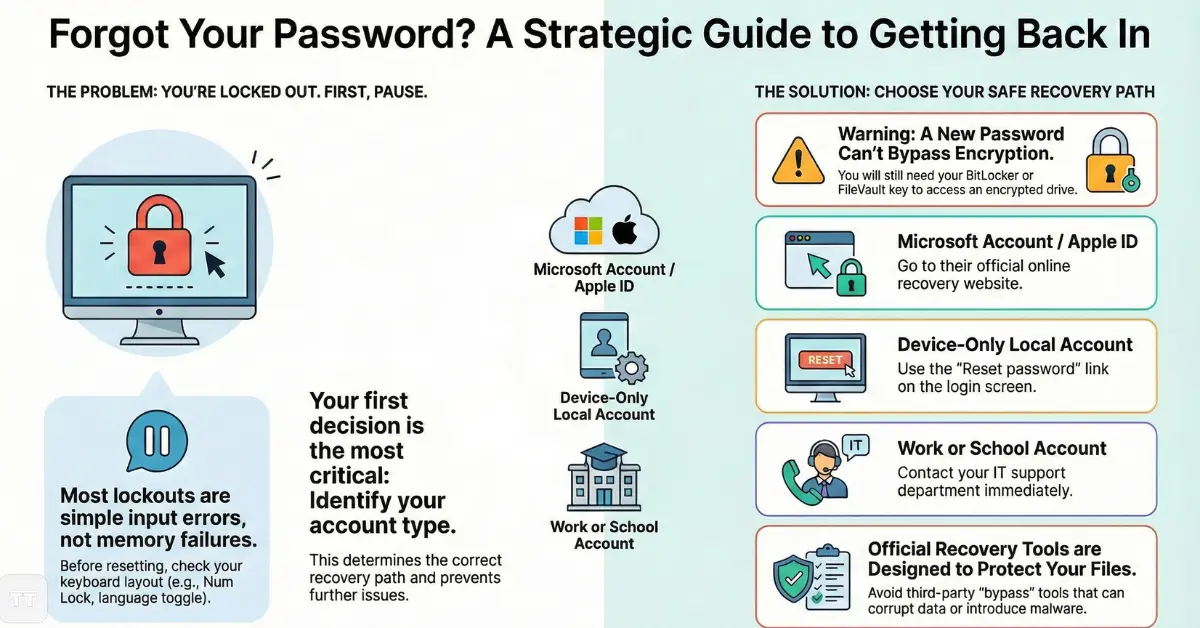
First Decision: Identify What Type of Account Is Locked
Before attempting recovery, the most overlooked step is identifying the authentication system behind the password.
Many users assume every login works the same way, but modern operating systems rely on layered identity models:
- Local accounts store credentials directly on the device.
- Cloud-linked accounts authenticate through Microsoft or Apple servers.
- Enterprise-managed profiles may require IT intervention.
- Encrypted devices can restrict resets without recovery keys.
This distinction matters because the fastest recovery method is usually tied to the identity provider — not the computer itself.
Attempting random reset methods often delays access rather than restoring it.
A practical rule emerges:
If the password is tied to an online account, recovery should begin online. If it is device-only, recovery must happen locally.
What to Do Immediately After Forgetting a Computer Password
The instinctive reaction is to retry variations of familiar passwords. That approach frequently escalates the problem by triggering security cooldowns.
When someone wonders, forgot computer password what to do, the smarter response is restraint rather than experimentation.
Three early actions reduce risk:
- Pause after two failed attempts to avoid temporary lockouts.
- Confirm keyboard layout — many lockouts stem from language toggles or disabled Num Lock.
- Check whether another admin profile exists on the device.
These small checks solve more lockouts than expected, particularly in shared households or small offices.
Overlooked insight:
Password failures are often input errors, not memory failures.
Resetting Access on Modern Windows Devices Without Signing In
Users searching for how to reset Windows password without login often assume third-party software is necessary. In reality, Microsoft has steadily reduced that need by integrating recovery directly into the sign-in experience.
The method depends heavily on whether the device uses a Microsoft account.
If the Device Uses a Microsoft Account
Resetting typically happens through Microsoft’s online recovery portal using a secondary email, SMS code, or authentication app.
Once the password changes in the cloud, the device usually accepts the new credential after reconnecting to the internet.
Tradeoff worth noting:
If the computer has been offline for an extended period, synchronization may delay recognition of the new password.
This is one reason security professionals recommend keeping recovery channels current.
If the Device Uses a Local Account
Windows now supports recovery questions configured during account creation. Correct answers unlock the ability to create a new password directly from the login screen.
However, this safeguard has a quiet limitation:
Security questions are only as strong as their answers.
Predictable responses weaken the protection they are meant to provide.
Using Another Administrator Profile
In multi-user environments, an administrator can reset credentials for other accounts without affecting files.
This is often the least disruptive solution in households or small businesses.
Best suited for:
Shared computers where at least one trusted admin remains accessible.
Resetting a Laptop Password in Windows 11: What Changed
Those needing to reset a laptop password in Windows 11 will notice a stronger push toward passwordless authentication.
PIN codes, biometric login, and security keys now act as fallback entry points — sometimes allowing access even when the primary password is forgotten.
This shift reflects a broader industry trend: reducing reliance on memorized secrets.
Yet there is an important nuance many guides overlook.
A PIN is device-specific.
It does not replace the account password; it merely unlocks that particular machine.
If both are forgotten, recovery still routes through the Microsoft identity system.
A Less Discussed Risk
Users sometimes reset credentials successfully but encounter BitLocker encryption afterward.
Without the recovery key, the drive may remain inaccessible.
This is not a system failure it is a deliberate protection against unauthorized resets.
Practical implication:
Storing recovery keys securely is no longer optional for anyone using modern Windows devices.
Recovering a Locked Computer Account in Work or School Environments
The process to recover a locked computer account changes dramatically under organizational control.
Repeated login failures often trigger automated lockouts designed to block unauthorized access attempts.
Unlike personal devices, these systems usually cannot be reset locally.
Instead, identity flows through centralized directory services such as Azure Active Directory or enterprise authentication platforms.
What many users misinterpret as a technical malfunction is actually a policy safeguard.
Why IT Departments Restrict Self-Resets
Organizations prioritize:
- Data confidentiality
- Regulatory compliance
- Breach prevention
Allowing unrestricted resets would undermine those protections.
For professionals working remotely, the fastest solution is usually contacting IT early rather than experimenting with recovery tools that may violate policy.
Decision insight:
If the device belongs to an employer, assume administrative involvement is required.
Attempting bypass methods can escalate the situation.
Mac Password Reset Steps: Designed Around Identity, Not the Device
Apple approaches authentication differently. Rather than centering recovery on the machine, it ties identity tightly to the Apple ID ecosystem.
Following the correct Mac password reset steps typically restores access without touching stored data.
Reset Using Apple ID
After multiple failed attempts, macOS often prompts users to reset the password using their Apple ID credentials.
Because identity verification happens through Apple servers, the process remains both secure and user-friendly.
Recovery Mode as a Secondary Path
If Apple ID recovery is unavailable, restarting into Recovery Mode enables password changes through built-in utilities.
This approach is powerful but carries an important caveat:
FileVault encryption may require the original recovery key.
Without it, even successful password changes may not unlock the disk.
A Strategic Advantage Apple Quietly Provides
Devices linked to trusted Apple IDs tend to recover faster because authentication relies on an ecosystem rather than a single password.
In practice, users who maintain updated trusted devices experience fewer prolonged lockouts.
The Misconception That Password Reset Equals Data Risk
A persistent fear is that resetting credentials erases files. On modern operating systems, this is rarely true when official recovery paths are used.
Data loss typically occurs only when:
- Unauthorized tools attempt brute-force resets
- Operating systems are reinstalled unnecessarily
- Encryption keys are unavailable
The safer perspective is simple:
Recovery tools are designed to preserve data workarounds are not.
This is why security experts consistently recommend avoiding unknown utilities promising instant access.
Convenience can mask long-term vulnerability.
When Recovery Fails: Signals That a Deeper Issue Exists
Occasionally, standard reset flows do not work. Rather than repeating the same steps, it helps to recognize escalation signals:
- Authentication codes never arrive
- Recovery emails are outdated
- The device shows encryption warnings
- Organizational policies block changes
These indicators suggest the problem is identity-related rather than password-related.
At this stage, account verification — not technical troubleshooting — becomes the priority.
Overlooked insight:
Most “unrecoverable” lockouts trace back to outdated recovery information.
Keeping backup channels current is one of the simplest forms of digital resilience.
Choosing the Safest Recovery Path Instead of the Fastest One
Speed matters during a lockout, but safety matters more.
A thoughtful recovery strategy considers both immediate access and future protection.
Cloud-based resets are generally safest for personal devices because they maintain security logs and verification layers.
Administrator-assisted resets are ideal in shared or professional environments.
Recovery keys act as the final safeguard when encryption is involved.
The temptation to search for bypass tools usually reflects urgency rather than necessity.
Yet bypassing security features often creates larger risks than the original lockout.
Expert perspective:
The best recovery method is the one aligned with the system’s intended security design.
Preventing the Next Lockout Before It Happens
Password resets should ideally be rare events. A few proactive adjustments dramatically reduce recurrence:
- Enable multi-factor authentication.
- Maintain updated recovery emails and phone numbers.
- Store encryption keys in a secure password manager.
- Consider passwordless sign-in where available.
Perhaps the most underestimated practice is periodic credential review. Many lockouts occur months after passwords were changed and forgotten.
Digital access is increasingly tied to identity ecosystems rather than individual devices. Preparing those ecosystems is now part of responsible device ownership.
The Bigger Shift: Passwords Are Gradually Losing Their Central Role
An important industry development often missed in recovery guides is the gradual transition away from traditional passwords.
Passkeys, biometric authentication, and hardware tokens are reshaping how users prove identity.
This evolution addresses a long-standing tension: passwords must be complex enough to resist attacks yet memorable enough to use daily — a balance humans rarely achieve.
Forward-looking users are already adopting passwordless methods, not just for convenience but for resilience against lockouts.
The implication is subtle but significant:
The future of account recovery may involve verifying identity rather than remembering secrets.
Frequently Asked Questions
Can a computer password always be reset without losing files?
Usually yes. Official recovery tools are designed to preserve data, but encryption systems require recovery keys. Without those keys, access to files may remain restricted even after a password change.
What is the fastest way to regain access after forgetting a password?
Using the linked online account recovery is typically fastest. Cloud verification often restores access within minutes compared to manual local resets.
Is it safe to use third-party password reset tools?
Generally no unless recommended by a trusted professional. Many tools bypass security protections, which can expose the device to malware or corrupt data.
Why does a computer lock after multiple attempts?
Temporary lockouts prevent automated guessing attacks. Waiting for the cooldown period is safer than continuing attempts.
Should passwords still be used if passkeys are available?
Passwords remain widely supported, but passkeys reduce both lockouts and phishing risk. Many users now adopt a hybrid approach during the transition period.
When is contacting IT the only option?
If the device is managed by an employer or school, administrative control usually blocks self-service resets. Early communication prevents prolonged downtime.
Conclusion
Being locked out of a computer feels disruptive, yet it is frequently evidence that modern security protections are functioning as intended. The real advantage lies not just in regaining access but in understanding the identity systems that guard it.
Users who approach recovery methodically — identifying account types, respecting encryption safeguards, and choosing official reset channels tend to resolve lockouts faster and with fewer complications.
More importantly, each recovery moment offers a chance to strengthen future access through updated recovery paths and stronger authentication methods.
In a digital environment where identity matters more than ever, preparedness quietly becomes the difference between a brief interruption and a prolonged barrier.

