


Summary
Windows updates are designed to be efficient, but cached delivery data can quietly slow systems down or consume more bandwidth than expected. Clearing the Delivery Optimization cache in Windows helps resolve update delays, unexpected network usage, and stalled downloads—especially on Windows 10 and Windows 11 systems used in shared or bandwidth-sensitive environments.
Introduction: Why Update Performance Feels Less Predictable Than It Should
Most Windows users assume slow updates are caused by Microsoft servers, weak internet connections, or temporary outages. That assumption misses a less obvious but increasingly common factor: how Windows locally manages update data over time.
Modern versions of Windows rely on Delivery Optimization to distribute update files more efficiently, often storing partial or complete packages on the device. Over months or years, this cache can grow, fragment, or become misaligned with current update requirements. When that happens, update behavior becomes inconsistent—downloads restart, bandwidth spikes appear without warning, or updates stall at specific percentages.
What many guides overlook is that clearing this cache is not just about reclaiming disk space. It directly influences how Windows negotiates updates, manages peer-to-peer sharing, and prioritizes network usage across applications. Understanding that relationship changes how update problems are diagnosed and fixed.
Understanding Delivery Optimization Beyond the Basics
Delivery Optimization is commonly described as a peer-assisted update system. That description is technically correct but operationally incomplete.
At a system level, Windows uses Delivery Optimization to:
-
Cache update files locally
-
Share parts of those files with other devices (depending on settings)
-
Resume interrupted downloads without starting over
-
Reduce repeated downloads across the same network
The cache itself acts as a working memory for Windows Update. When functioning properly, it improves reliability. When left unmanaged, it can introduce conflicts—especially after feature updates, network changes, or major system upgrades.
A key insight often missed: Delivery Optimization does not automatically purge its cache aggressively. Windows assumes stability is preferable to frequent cleanup, even if that means retaining outdated or unused data longer than necessary.
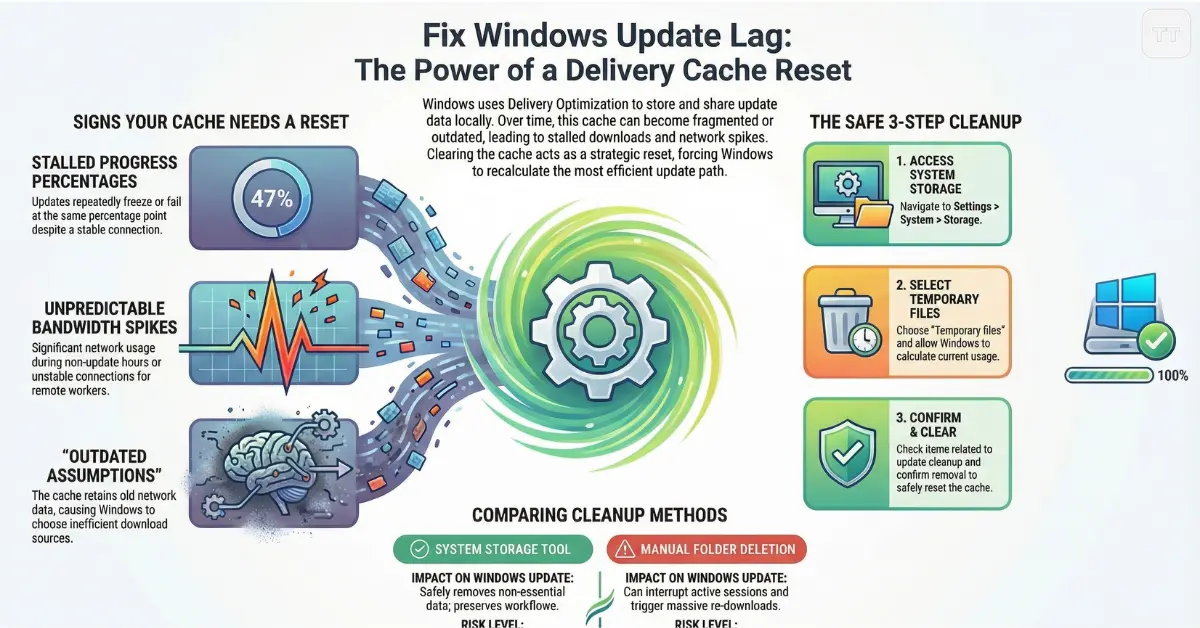
When Clearing the Cache Is Not Optional Anymore
Clearing the Delivery Optimization cache is most impactful in specific scenarios, not as a routine maintenance habit.
It becomes particularly relevant when:
-
Updates repeatedly fail at the same percentage
-
Bandwidth usage spikes during non-update hours
-
Remote work setups experience unstable connections during updates
-
Devices move between different networks (home, office, public)
-
Storage is sufficient, but update behavior remains erratic
In enterprise and prosumer environments, cached update fragments can also conflict with updated policies or newer delivery rules, leading Windows to make inefficient decisions about where and how to retrieve files.
This is one of those cases where the system is not “broken,” but it is operating on outdated assumptions.
The Practical Way to Clear Delivery Optimization Cache in Windows
Windows provides multiple ways to remove cached update data, but not all methods affect Delivery Optimization equally. The most reliable approach uses built-in system tools designed for update-related cleanup rather than manual file deletion alone.
Using Storage Cleanup to Remove Cached Update Data
The safest and most universally applicable method relies on Windows’ own cleanup logic.
-
Open Settings
-
Navigate to System → Storage
-
Select Temporary files
-
Allow Windows to calculate usage
-
Check items related to update cleanup
-
Confirm removal
This process targets Delivery Optimization files without disrupting update services or permissions.
What makes this method effective is context awareness. Windows removes only cache data it no longer considers essential, reducing the risk of breaking update workflows.
Why Manual Deletion Sometimes Backfires
Some users attempt to delete Delivery Optimization files directly from system folders. While technically possible, this approach carries risks that most guides understate.
Manual deletion can:
-
Interrupt active update sessions
-
Reset partial download states improperly
-
Trigger unnecessary re-downloads of large files
-
Cause Windows Update to misreport progress
In troubleshooting environments, this method is sometimes justified—but only when update services are fully stopped and the system is idle. Even then, it trades short-term control for long-term predictability.
A more reliable fix for persistent issues is clearing cache through supported system mechanisms first, then adjusting delivery behavior if problems recur.
The Bandwidth Angle Most Users Miss
Clearing cached update data is often recommended to fix Windows Update bandwidth issues, but the deeper benefit lies in how Windows recalculates network priorities afterward.
Once the cache is cleared:
-
Windows reassesses download sources
-
Peer-sharing logic is recalibrated
-
Background bandwidth caps are reapplied more accurately
-
Update scheduling becomes more predictable
This is especially noticeable on Windows 11 systems using adaptive delivery settings. Old cached data can anchor Windows to inefficient peers or outdated network assumptions. Removing it forces a fresh evaluation.
In practical terms, this often resolves scenarios where updates download slowly despite fast connections—or consume bandwidth at inconvenient times.
Delivery Optimization Settings That Matter After Cleanup
Clearing the cache without reviewing Delivery Optimization settings limits long-term benefits. The cleanup resets data, but behavior is governed by configuration.
Key settings worth reviewing include:
-
Whether updates are shared with devices on the local network only or across the internet
-
Background download limits
-
Monthly upload caps
-
Priority given to foreground applications
A common misconception is that disabling peer sharing entirely improves performance. In reality, controlled local sharing often improves stability while reducing external bandwidth use. The real issue is unmanaged caching—not the feature itself.
Tradeoffs and Limitations to Be Aware Of
Clearing the Delivery Optimization cache is not a universal fix, and it comes with tradeoffs that should be understood.
Short-term consequences can include:
-
Slightly longer download times for the next update
-
Temporary increase in server-based downloads
-
Loss of resume data for partially downloaded updates
These effects are usually transient and outweighed by improved reliability. However, in environments with extremely limited connectivity, timing matters. Clearing cache immediately before a large feature update may not be ideal.
This is why cache cleanup works best as a corrective action—not as a recurring habit.
How This Fits Into Broader Windows Maintenance
Windows update cache cleanup sits at the intersection of performance optimization and network management. It complements—but does not replace—other maintenance practices like disk health checks, driver updates, or system integrity scans.
For power users and IT administrators, the real value lies in predictability. A clean Delivery Optimization state makes update behavior easier to diagnose, measure, and control over time.
This is also why many enterprise environments script or schedule controlled cleanup during maintenance windows rather than reacting to issues after they appear.
Frequently Asked Questions
Does clearing the Delivery Optimization cache delete installed updates?
No. It removes stored update files, not updates that are already installed. System functionality and security patches remain intact.
Will this fix slow Windows Update downloads immediately?
In many cases, yes. Clearing outdated cached data allows Windows to reselect optimal download sources, which often improves speed and stability.
Is this safe on Windows 11 systems?
Yes. Windows 11 is designed to handle cache cleanup through built-in storage tools without affecting update integrity.
How often should this be done?
Only when update behavior becomes unreliable or bandwidth usage appears abnormal. Routine clearing offers little benefit.
Does this reduce data usage on metered connections?
Indirectly. A fresh cache combined with proper Delivery Optimization settings helps Windows respect bandwidth limits more accurately.
Concusion: Clearing Cache as a Strategic Reset, Not a Cleanup Trick
Clearing the Delivery Optimization cache in Windows is less about deleting files and more about resetting assumptions. Over time, cached update data reflects old networks, interrupted sessions, and outdated delivery paths. Removing it gives Windows permission to start fresh.
For users dealing with slow updates, unpredictable bandwidth usage, or stalled downloads, this reset often provides clarity where repeated retries fail. It restores balance between efficiency and control—without disabling features that were designed to help in the first place.

