

Summary
Knowing how to clean my computer in 2026 means more than wiping the screen—it involves removing internal dust safely, optimizing software, and protecting long-term performance. A properly maintained PC or Mac runs cooler, faster, and more securely. With modern hardware becoming thinner and more powerful, safe and informed cleaning is now essential, not optional.
Why Computer Cleaning Matters More in 2026
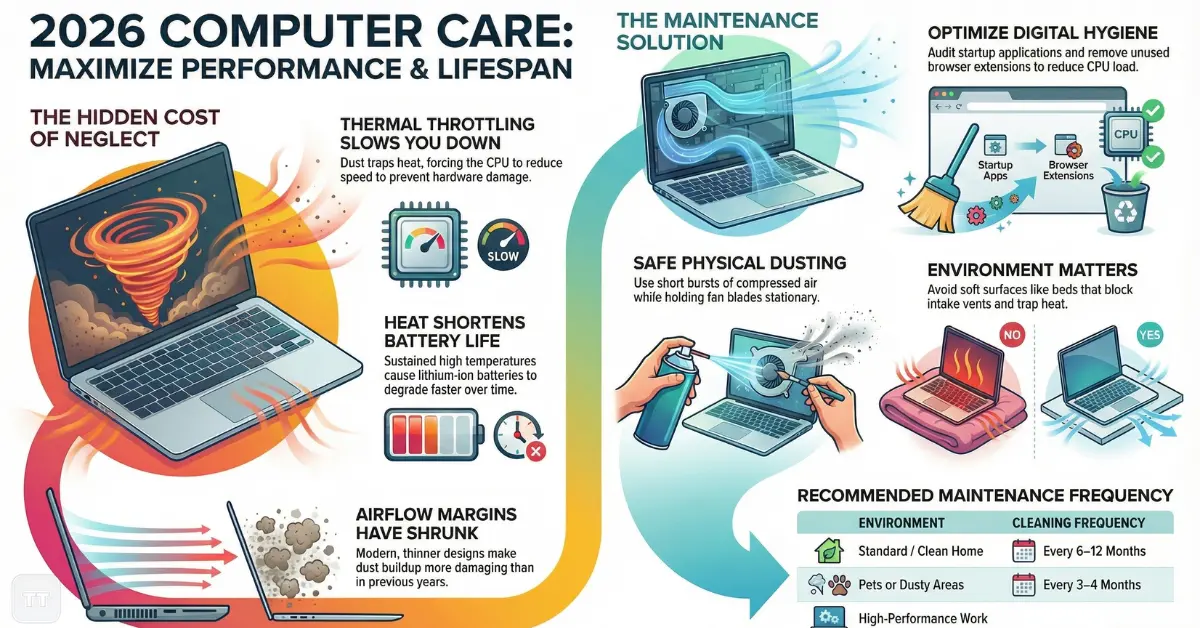
Laptops and desktops today are more powerful than ever, but they are also more compact. High-performance processors from companies like Intel and Apple generate significant heat in increasingly thin designs. While performance has improved, airflow margins have shrunk. That shift makes dust buildup more damaging than it was five years ago.
Many users assume a slow system means it is “getting old.” In reality, performance degradation is often a symptom of two preventable issues: restricted airflow and software clutter. Cleaning addresses both.
Most online advice focuses only on external wiping. What often gets overlooked is the connection between dust accumulation, thermal throttling, fan wear, battery stress, and long-term hardware lifespan. A clean machine is not just quieter—it protects internal components from premature failure.
The Hidden Cost of Dust: What Actually Happens Inside
Dust does not simply sit on a fan blade. Over time, it forms dense layers over heat sinks, blocking airflow and trapping heat around the CPU and GPU. Modern systems automatically reduce performance when temperatures rise—a protective behavior known as thermal throttling.
The result feels like aging hardware:
- Slower app launches
- Lag during video calls
- Overheating warnings
- Loud, constantly spinning fans
For remote workers running video meetings or students multitasking between browsers and documents, this can dramatically affect productivity.
An overlooked detail: overheating shortens battery lifespan. Lithium-ion batteries degrade faster under sustained heat. That means neglecting dust cleaning indirectly increases replacement costs.
Before You Open Anything: Safety Comes First
Anyone researching how to clean a PC safely should understand that improper handling causes more damage than dust ever could.
Power must be fully disconnected. For laptops, shut down—not sleep—and unplug charging cables. If possible, discharge residual power by holding the power button for 10 seconds after shutdown.
Static electricity remains a real risk. Even in 2026, anti-static precautions matter. A simple anti-static wrist strap or touching grounded metal before handling components can prevent invisible damage.
Compressed air should always be used in short bursts. Holding the nozzle too close can force moisture into components. Spinning fans with air pressure can also damage bearings; gently holding fan blades in place while cleaning prevents this issue.
These fundamentals remain consistent whether cleaning a Windows desktop or learning how to clean a Mac computer.
External Cleaning: More Than Cosmetic
Surface cleaning improves hygiene, especially for shared workstations, but it also affects usability.
Screens should be wiped with microfiber cloths slightly dampened with distilled water or approved screen cleaner. Harsh household cleaners can strip protective coatings, especially on modern anti-glare displays.
Keyboards accumulate oils, debris, and bacteria. Turning the keyboard upside down and gently tapping it removes loose particles. For deeper cleaning, compressed air between keys prevents buildup that can affect key responsiveness.
Mice and trackpads deserve equal attention. Accumulated debris interferes with sensor accuracy and gesture recognition—issues often misinterpreted as software bugs.
This phase may seem minor, but clean input devices reduce typing friction and subtle productivity slowdowns over time.
Internal Cleaning: Desktop vs Laptop Reality
A desktop PC is easier to maintain. Removing the side panel provides access to fans, power supply vents, and graphics cards. Following a structured computer dust cleaning guide ensures no area is ignored:
- Intake and exhaust fans
- CPU heat sink
- GPU fans
- Power supply vents
- Bottom dust filters
Desktops benefit from quarterly internal cleaning in dusty environments.
Laptops are more delicate. Many modern models use compact screws and tight layouts. Some ultrathin devices from Apple use proprietary internal designs that are not intended for frequent user access.
For MacBook users, cleaning external vents and using compressed air without opening the chassis is often sufficient unless overheating persists. In such cases, professional servicing may be safer than self-disassembly.
A practical judgment: if the device is under warranty, opening it may void coverage. When uncertainty exists, professional cleaning every 12–18 months is often worth considering.
Cleaning Software: The Other Half of Performance
Physical cleaning solves thermal constraints. Software cleaning addresses system efficiency.
When users search how to speed up a slow computer, the real issue is often background processes and startup overload. Over time, applications quietly add launch agents or services.
On Windows systems:
- Review startup apps in Task Manager
- Uninstall unused programs
- Run built-in disk cleanup tools
On macOS:
- Check Login Items in System Settings
- Remove unused apps
- Clear cache files responsibly
However, aggressive “cleaner apps” promising instant speed gains should be treated cautiously. Many provide minimal benefit and may introduce security risks.
An overlooked limitation: modern operating systems are optimized to use available RAM aggressively. High memory usage alone is not a problem. Performance issues arise when disk usage spikes or background CPU activity remains constant.
Understanding that distinction prevents unnecessary troubleshooting.
Airflow, Placement, and Environment: The Silent Factors
Even a freshly cleaned computer can overheat if its environment is poorly managed.
Placing a laptop on soft surfaces like beds or couches blocks ventilation. In home offices, positioning a desktop tower inside a closed cabinet restricts exhaust airflow.
Air quality also matters. Homes with pets, carpets, or high outdoor pollution levels require more frequent maintenance. In such settings, cleaning every 3–4 months may be necessary.
For remote workers in warmer regions, elevating a laptop with a stand improves airflow significantly. This small change can reduce internal temperatures by several degrees.
This environmental awareness is rarely emphasized, yet it often determines whether cleaning efforts last.
Cyber Hygiene: Cleaning Beyond Dust
Cleaning in 2026 also includes digital hygiene. Malware, outdated software, and neglected updates slow systems and expose vulnerabilities.
Keeping systems updated ensures security patches remain current. Both Windows and macOS automate updates, but users frequently postpone them.
Routine practices include:
- Enabling automatic updates
- Running built-in security scans
- Removing unused browser extensions
Students and small business professionals especially benefit from regular digital maintenance. A cluttered browser with dozens of extensions can degrade performance more than hardware limitations.
The broader insight: physical and digital cleaning are interconnected. A cool, dust-free machine running outdated software still underperforms.
When Cleaning Is Not Enough
There is a common misconception that cleaning alone restores performance. While it often helps significantly, it does not solve aging storage drives or insufficient memory.
If a system uses an older hard disk drive, upgrading to a solid-state drive can produce dramatic speed improvements. Similarly, increasing RAM can extend usable lifespan by years.
Cleaning is foundational maintenance—but it is not a substitute for hardware upgrades when limitations become structural.
Recognizing that boundary prevents unrealistic expectations.
How Often Should a Computer Be Cleaned?
Frequency depends on environment and usage intensity.
General guidance:
- Light home use in clean environments: every 6–12 months
- Pet owners or dusty areas: every 3–4 months
- High-performance workloads (gaming, video editing): inspect quarterly
Waiting until overheating becomes noticeable is reactive maintenance. Preventive cleaning reduces long-term wear.
Users who incorporate cleaning into seasonal routines often report fewer unexpected slowdowns.
Practical Safe Computer Cleaning Tips 2026
Modern devices require careful handling. The following practices remain essential:
- Use compressed air, not vacuum cleaners
- Avoid spraying liquid directly onto components
- Hold fans in place during cleaning
- Power down fully before maintenance
- Keep cleaning materials lint-free
A vacuum cleaner may seem convenient, but it can generate static electricity and damage circuits. Compressed air remains the safest option when used correctly.
One subtle but important insight: over-cleaning with excessive force can damage connectors. Gentle, controlled airflow is more effective than aggressive bursts.
Deciding Between DIY and Professional Service
For many home users, routine dust removal is manageable. However, complex systems—particularly compact ultrabooks or high-end workstations—may require professional tools and expertise.
Professional cleaning is often appropriate when:
- The system overheats persistently
- Fans make grinding noises
- The device is under warranty
- Internal access is restricted by design
Attempting invasive cleaning without experience can cause more harm than dust itself.
FAQ
How do I know if my computer needs cleaning?
If fans are louder than usual, the system feels hot, or performance drops during simple tasks, cleaning is likely overdue. Visual inspection of vents often reveals dust buildup.
Is compressed air safe for cleaning a computer?
Yes, when used in short bursts and at a safe distance. Holding fans still during cleaning prevents mechanical damage.
Can cleaning improve battery life?
Indirectly, yes. Reducing internal heat slows battery degradation and can improve efficiency over time.
Does cleaning delete files or programs?
Physical cleaning does not affect data. Software cleaning tools should be used carefully to avoid removing necessary system files.
How often should a Mac be cleaned internally?
Most users benefit from external vent cleaning every few months. Internal servicing is typically needed only if overheating persists or after extended heavy use.
Conclusion: Cleaning as Preventive Strategy, Not Emergency Fix
Cleaning a computer in 2026 is not a cosmetic ritual—it is preventive maintenance that protects performance, hardware longevity, and security. Dust restricts airflow, heat reduces efficiency, and neglected software compounds the slowdown.
The most valuable shift in perspective is this: maintenance is cheaper than replacement. Regular, careful cleaning extends usable lifespan and preserves reliability in work, study, and business environments.
A computer that runs quietly and consistently is rarely lucky. It is maintained.

