

Short Info:
Connecting multiple computers securely in 2026 relies on three proven approaches: wired local networks, modern wireless networking, or cloud-based connections. The best choice depends on speed needs, distance, and whether remote access or centralized control is required. This guide explains which method works, where each fails, and how to choose correctly.
Why This Matters
Many users need to connect multiple computers for file sharing, remote work, or shared devices. Most online guides focus only on setup steps, ignoring real-world security, performance trade-offs, or practical limitations. That often results in slow transfers, unstable connections, or exposure to avoidable risks.
This guide explains exactly what works, what doesn’t, and how to choose correctly.
Understanding the Three Real Ways Computers Are Connected in 2026
When people search for how to connect multiple computers, they usually mean one of three outcomes:
-
Fast local sharing inside a home or office
-
Wireless flexibility without cables
-
Secure access between computers in different locations
Each outcome requires a different approach. Mixing them without planning often causes frustration.
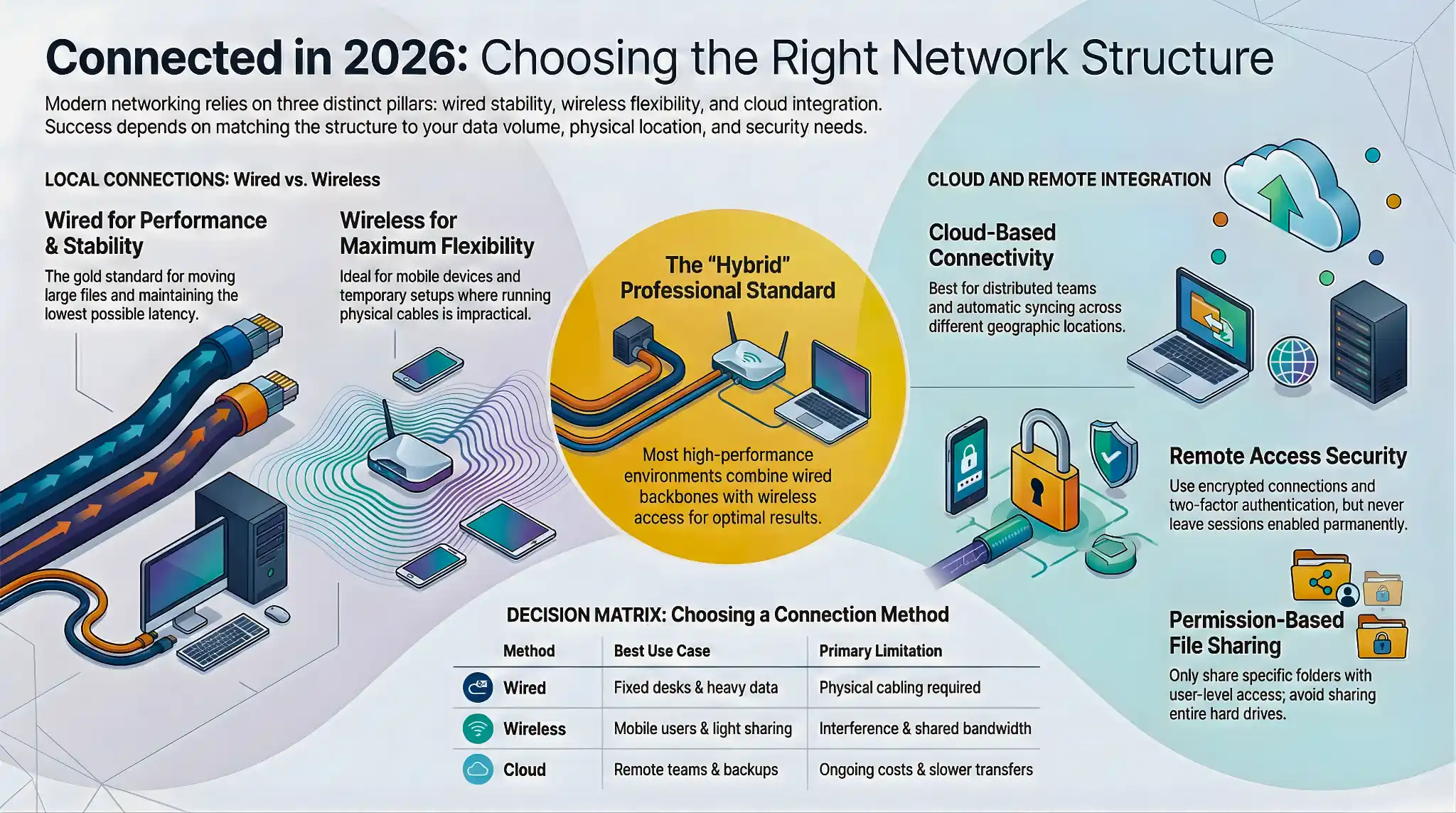
Wired Networking: When Stability and Speed Matter Most
Best use case: Small offices, home labs, institutions, or anyone moving large files daily.
A wired setup connects computers on the same network using Ethernet cables and a router or switch. In real-world use, this remains the most reliable option in 2026.
Why it works:
-
Consistent speed
-
Lowest latency
-
Minimal interference
Limitations:
-
Physical cabling required
-
Less flexible for laptops or temporary setups
Who this is for:
-
Users prioritizing performance and stability
-
Offices with fixed desks
-
File sharing between multiple PCs on the same network
Who should avoid it:
-
Frequent movers
-
Homes where running cables isn’t practical
Common mistake: Assuming Wi-Fi will match wired performance it usually doesn’t.
Read More: How do I boost my PC performance in Windows 11?
Wireless Networking: Flexibility With Tradeoffs
Best use case: Home users, remote workers, shared living spaces.
Wireless networking allows computers to connect through a router using Wi-Fi. Most users notice it’s easier to set up but less predictable under load.
What works well:
-
No cables
-
Easy to expand
-
Modern Wi-Fi standards handle multiple devices better
Where it fails:
-
Speed drops with distance
-
Interference from walls and devices
-
Shared bandwidth slows file transfers
Decision filter: Works best for light to moderate file sharing. Not ideal for constant large data transfers.
In many home office & institute network setups, wireless is combined with wired connections for best results.
Peer-to-Peer vs LAN: Choosing the Right Local Structure
Peer-to-peer connections: Computers connect directly without a central server.
-
Good for temporary file sharing and small groups
-
Risks: harder to secure properly, relies on correct permissions
LAN-based setups: All computers connect through a router or switch.
-
Easier management
-
Better access control
-
Scales more reliably
Recommendation: LAN remains the safer long-term choice for most users following peer-to-peer and LAN setup guides.
File Sharing Between Multiple PCs Without Complications
Best practice in 2026: Use built-in sharing tools from Windows or macOS combined with network permissions.
Common mistakes:
-
Overly open folders
-
No access limits
-
Ignoring user accounts
Clear recommendation: Share only required folders, assign user-specific access, and avoid full-disk sharing. This keeps local sharing fast while reducing accidental exposure.
Remote Access Between Computers: When Distance Is Involved
Best use case: Remote work, IT support, traveling professionals.
Remote access allows control or file access across different locations. Most users notice cloud-assisted tools are easier but depend on internet quality.
What works:
-
Encrypted connections
-
Two-factor authentication
-
Limited access windows
When it doesn’t:
-
Poor internet
-
Unsecured public Wi-Fi
-
Always-on remote sessions
Common mistake: Leaving remote access enabled permanently.
Cloud-Based Computer Connectivity: Convenience vs Control
Best use case: Distributed teams, backups, cross-device access.
Cloud-based connectivity syncs files or enables access without local networking.
Advantages:
-
No local setup
-
Works anywhere
-
Automatic sync
Tradeoffs:
-
Ongoing subscription costs
-
Data stored offsite
-
Slower for very large transfers
Who this is for: Users prioritizing convenience and remote-first teams.
Who should think twice: Privacy-sensitive environments or high-volume data workflows.
Cloud works best as a supplement, not a replacement, for local networks.
Read More: What new things can I do with Windows 11?
Wired vs Wireless Computer Networking: The Real Comparison
Wired wins when:
-
Speed is critical
-
Stability matters
-
Security is a priority
Wireless wins when:
-
Flexibility matters
-
Devices move often
-
Setup time must be minimal
Most professionals quietly use both for optimal results.
Common Mistakes That Cause Network Problems
-
Mixing public and private networks
-
Using default router passwords
-
Sharing entire drives instead of folders
-
Expecting Wi-Fi to match Ethernet performance
Avoiding these solves most issues people blame on hardware.
When Each Method Works & When It Doesn’t
| Method | Works | Fails |
|---|---|---|
| Wired | Fixed locations, heavy use | Mobile setups |
| Wireless | Homes, light sharing | High interference environments |
| Cloud | Remote collaboration | Large continuous transfers |
Knowing this prevents overengineering and wasted investment.
FAQs
Q1: Can multiple computers be connected without internet?
A: Yes. Local wired or wireless networks work without internet.
Explanation: Internet is only required for cloud or remote access; LAN can operate entirely offline.
Q2: Is wireless secure enough in 2026?
A: Yes, if encryption and strong passwords are used correctly.
Q3: What’s the fastest way to connect multiple PCs for file sharing?
A: A wired LAN with proper permissions is consistently fastest.
Q4: Do cloud tools replace local networks?
A: No. They complement local setups but don’t replace them.
Q5: Can different operating systems connect together?
A: Yes. Most modern systems support cross-platform networking via SMB or AFP protocols.
A: Use a wired LAN with a gigabit switch for speed and stability, optionally adding Wi-Fi for laptops or mobile devices. Assign IPs carefully, manage file sharing with permissions, and secure the network with strong passwords, firewalls, and WPA3 encryption.
Explanation: For 20 computers, a wired backbone ensures reliable file transfers and low latency, while Wi-Fi can provide flexibility for mobile devices. Use a central server or NAS for shared files, and avoid sharing entire drives.
Final Takeaway
Connecting multiple computers in 2026 is less about tools and more about choosing the right structure. Wired networks deliver performance, wireless adds flexibility, and cloud fills distance gaps.
With a clear understanding of how this works, readers can now select the option that actually fits their needs without guesswork.

