

Summary
Connecting a PS4 controller to your iPhone might sound purely technical, but beneath the surface lies a surprisingly smooth way to level up your mobile gaming experience. With the right steps, you can play console-style on your iPhone—and most people don’t even realize how easy it actually is.
The “Why This Matters” Story
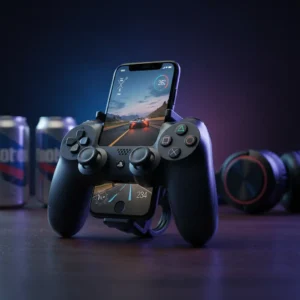
You’ve settled in after a long day, pulled out your iPhone to play a favorite game, and… your thumbs feel awkward on the screen. What you’d give for a real controller. Now imagine grabbing your trusty PlayStation-style gamepad, pairing it with your iPhone, and within minutes you’re back in the zone—buttons clicking, analog sticks responding—and it just works. That moment changed my mobile-gaming rhythm.
Here’s what you’ll discover:
- Exactly how to connect a PS4 controller to iPhone step by step.
- What to do when things don’t work as expected.
- Tips and tricks to optimize for the best experience.
- Why doing it gives you more than just “better controls” (a little psychological win, too).
Why connecting a PS4 controller to iPhone could change the way you game
Short answer: It turns your iPhone into a mini console.
Longer answer: It gives you physical controls, familiar layout, better ergonomics—and that adds up to less frustration, more immersion, and maybe more wins.
Using your thumbs on a touchscreen is fine for casual stuff—but when a gripping racing game or a competitive shooter comes up, controllers shine. A real analog stick and tactile buttons help you feel the game rather than just tap it.
Also: mobile gaming is more popular than ever. With the right controller, you’re elevating not just your play but your setup. And when you feel upgrade, you play better.
The hidden truth about how to connect PS4 controller to iPhone
You might think you need special apps or extra hardware—but actually, Apple built in native support for many Bluetooth game controllers. One recent support document shows that PlayStation’s DualShock 4 and DualSense wireless controllers are supported by iPhone and iPad.
Here are a few “aha” facts that surprised me:
- The PS4 DualShock 4 (and later PS5 DualSense) are supported by iPhone via Bluetooth.
- You don’t necessarily need to plug in a cable—though a cable connection may work too if supported.
- However: just because it’s “connected” doesn’t guarantee every game will support every button or feature (touchpad, vibration, etc.).
- If the controller is already paired with another device (say your PS4 console), that can cause hiccups.
That means, once you understand how to connect properly, you avoid most of the common frustrations—and that counts for a lot.
How does the process actually work? (Step-by-Step Plan)
Here’s how I’ll guide you through it
What you’ll need before you begin
- An iPhone running a supported version of iOS (typically iOS 13 or later for controller support).
- A controller that’s supported—like the DualShock 4 (or DualSense if noted).
- A charged controller and good Bluetooth connectivity.
The pairing steps (Bluetooth method)
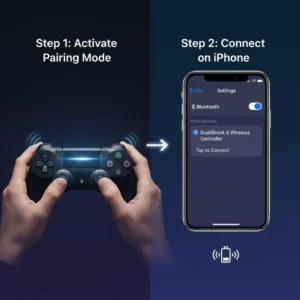
- On the controller, press and hold the PS button and the Share (or Create) button at the same time until the light bar starts flashing. This puts it into pairing mode.
- On your iPhone: go to Settings → Bluetooth, make sure Bluetooth is ON.
- Under “Other Devices”, you should see “DualShock 4 Wireless Controller” (or similar). Tap it.
- The light on the controller should stabilize and show it’s paired.
- If the controller pairs but doesn’t connect, press the PS button to prompt connection.
- Open a game that supports controllers and test it out.
Optional wired connection (if supported)
If your controller supports USB-C (or a wired method) and your iPhone supports it: connect via cable, and the controller may auto-pair. But for most folks, wireless is easiest and works reliably.
Why some attempts fail (and how to fix them)
Let’s be honest: I tried a few times when it didn’t work right. Here’s what helped.
Common issues & quick fixes
- Controller shows but won’t respond in game: It’s paired but the game may not support all its inputs. Some users mention specific games that don’t map buttons correctly.
- Too many Bluetooth devices connected: Wireless interference or too many connections may block the controller.
- Firmware/OS mismatch: Make sure your iPhone is updated and the controller (if applicable) has the latest firmware.
- Controller still paired to another device: Disconnect or “forget” it from previous device, then pair fresh.
Pro-tip for best performance
- Keep your iPhone relatively close to the controller—minimize walls or interference.
- If the controller’s light bar is glowing and connection feels delayed, try unpairing and pairing again.
- For games, open controller settings (if available) inside the game or in iOS under Settings → General → Game Controller to check mapping.
What happens when you succeed? (Outcome-based benefits)
Once you’ve got your PS4 controller working with your iPhone, you’ll feel the difference:
- Better control: Physical buttons give precision you simply don’t get with touch alone.
- Comfort: Longer sessions feel less fatiguing.
- More game options: Many mobile games support controllers, meaning you can play premium titles or stream from other devices with ease.
- Gaming setup upgrade: It feels more like a console experience, which adds satisfaction—especially when you’re serious about mobile gaming.
One user in a Reddit thread said:
“Long story short, this is easily the best new feature … my favorites include Minecraft … plus using Steam Link …”
Seeing that kind of shift—from “just playing” to “playing in comfort”—speaks volumes.
How this differs from just using touchscreen controls
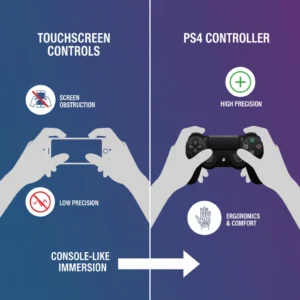
Touchscreen gaming is great—but using a physical controller is a different league. Here’s a comparison:
| Feature | Touchscreen | PS4 Controller on iPhone |
| Ergonomics | Flat screen, no grip | Real controller, better grip |
| Precision (analog movement) | Two fingers | Analog sticks/buttons |
| Screen visibility | Fingers may cover | Fingers off screen |
| Game functionality | Limited support | Broad controller support |
| Immersion | Casual | Console-like experience |
When you use a controller, you’re not just playing, you’re immersed. It changes how you perceive mobile gaming.
Frequently Asked Questions (FAQs)
Here are common questions people ask—and the short answers + deeper insight.
Can I use any PS4 controller with an iPhone?
Answer: usually yes if it’s a DualShock 4 or newer and your iPhone supports it.
Deeper insight: Some older controller models may not support Bluetooth pairing properly with iOS. Users note some controllers lack certain features.
Does the PS4 controller work with all games on iPhone?
Ans: No—game support varies.
Deeper: While iOS supports external game controllers broadly, a specific game must have controller-input support. If the game was designed only for touch, some functions may not map.
What if the controller pairs but doesn’t connect or work?
Ans: Try updating software, reducing other Bluetooth devices, unpairing & pairing again.
Extra detail: Many users recommend using the “Forget This Device” option in Bluetooth settings then re-pairing. Also check that the controller is supported and iPhone OS is up-to-date.
Is there latency or lag when using the PS4 controller with iPhone?
Ans: Minimal in most cases—yes, some lag may occur but it’s usually negligible for casual/standard mobile gaming.
Deeper: Bluetooth has limits, and interference or distance can increase latency. For competitive games you’ll still want good conditions (controller battery, space, minimal interference).
Can I connect the PS4 controller via cable instead of Bluetooth?
Ans: If the controller and iPhone support it, yes.
Extra: For example, some newer controllers support a wired USB-C connect option with iPhone. But many rely purely on Bluetooth so wired is optional.
Conclusion
Now that you know how to connect the PS4 controller to iPhone and what to watch out for, you’re just a few taps away from a better gaming experience. Think of it like unlocking the “console mode” in your pocket. It’s not just about pressing buttons—it’s reclaiming the joy of gaming, wherever you are.
So don’t just read and scroll—grab that controller, pair it up, open your favorite mobile game and feel the difference. You’ll be glad you did.

