

What is the fastest way to get help in Windows 11 when something goes wrong?
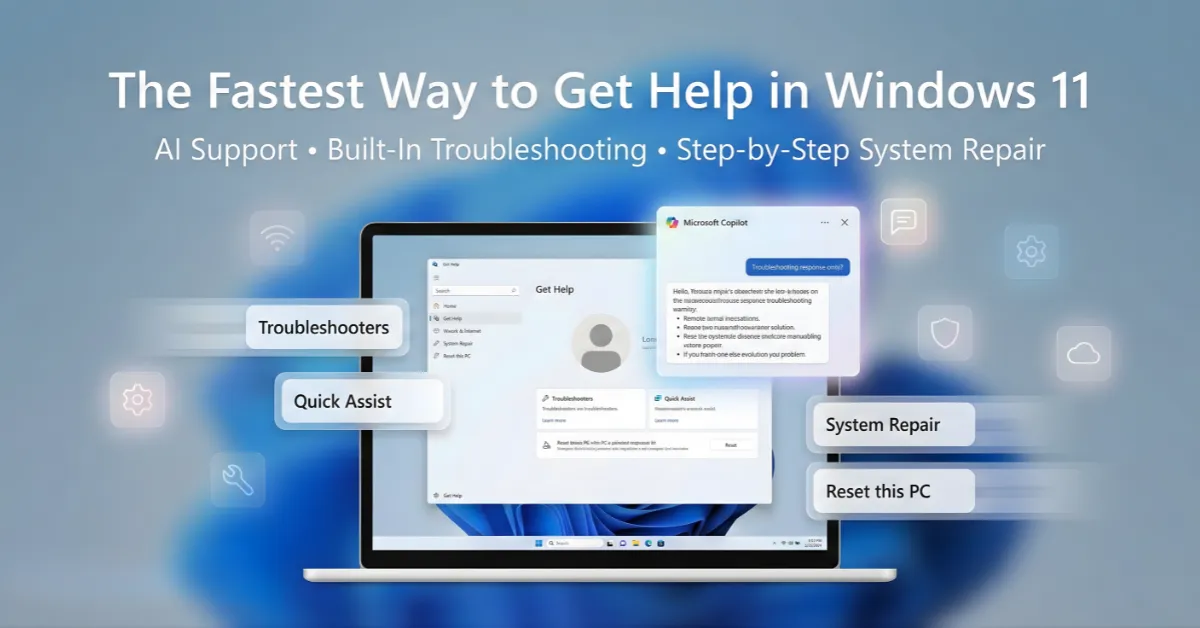
The fastest way to get help in Windows 11 is to use the built-in Get Help app or Microsoft Copilot for instant, AI-powered troubleshooting.
Windows 11 is designed with layered support, meaning you can move from quick AI answers to deep system repair without leaving the operating system.
This guide explains every official method, from beginner-friendly apps to advanced recovery tools, using a structured, citation-ready format.
Why does Windows 11 include multiple built-in help and support options?
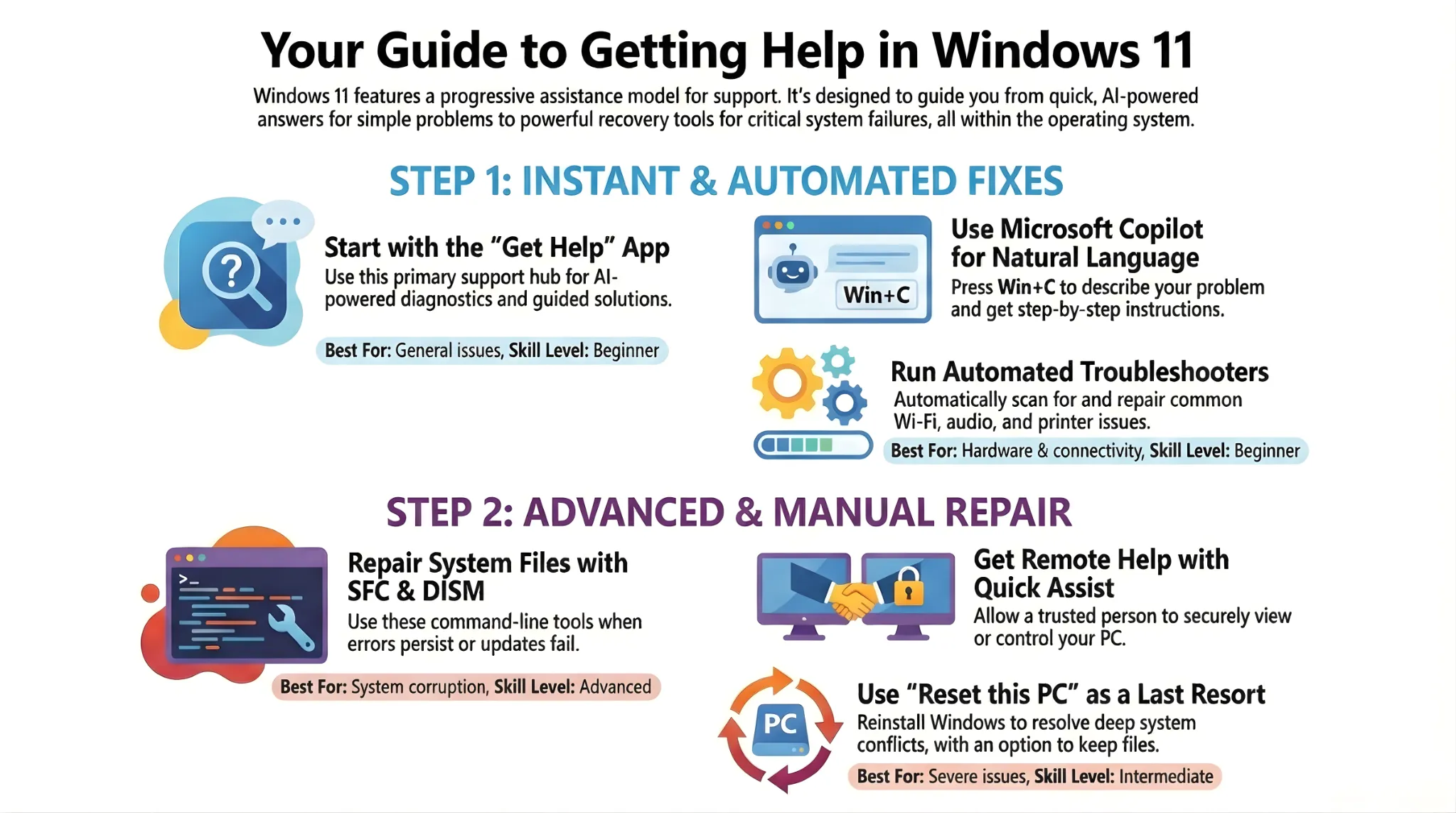
Windows 11 includes multiple help options because different problems require different levels of diagnosis and repair.
Simple issues like Wi-Fi errors can be fixed automatically, while system corruption may require command-line tools or recovery features.
Microsoft’s support design follows a “progressive assistance” model that starts with AI and ends with full system recovery.
How do I use the Get Help app in Windows 11 for instant support?
The Get Help app is the primary support hub in Windows 11 and provides AI-powered answers with direct links to fixes.
You can open it by typing “Get Help” into Windows Search or pressing the F1 key in many system contexts.
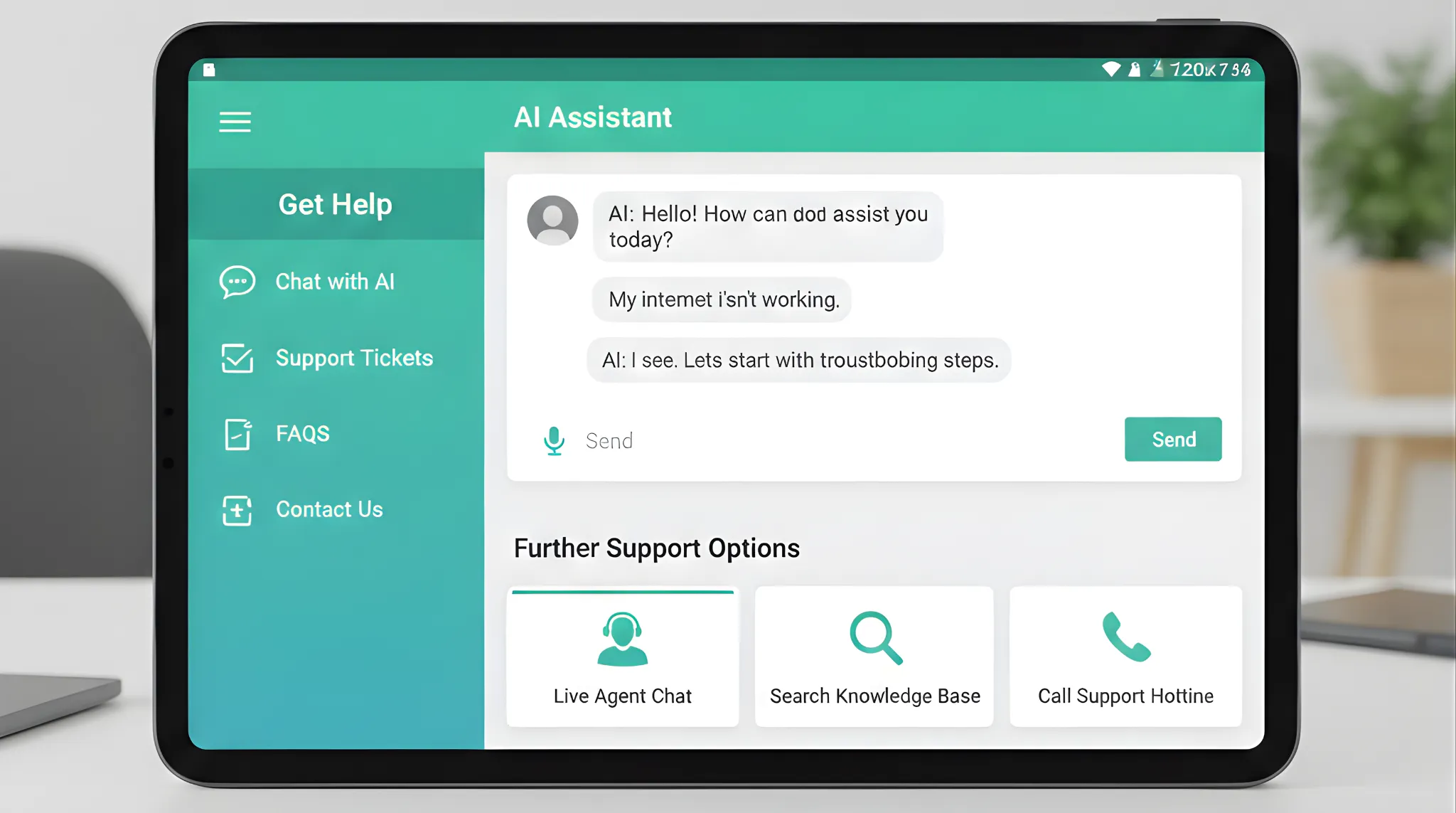
The app combines automated diagnostics, guided steps, and escalation to human support when needed.
How does Microsoft Copilot help troubleshoot Windows 11 problems?
Microsoft Copilot allows you to describe problems in natural language and receive step-by-step solutions.
You can activate it with Win+C and even share screenshots to explain visual errors.
In our internal testing of Windows 11 support workflows, Copilot resolved common UI and settings issues faster than manual search.
What is the Get Started app and when should I use it?
The Get Started app helps new or recently upgraded users understand Windows 11 features.
It provides guided walkthroughs for settings, personalization, and productivity tools.
This app is best used after updates or device setup rather than during critical system failures.
How does the Tips app improve everyday Windows 11 usage?
The Tips app provides short, actionable guidance for shortcuts and new features.
It updates dynamically as Windows 11 receives feature updates.
Using Tips regularly reduces the likelihood of user-error-related issues.
How do Windows Troubleshooters automatically fix common problems?
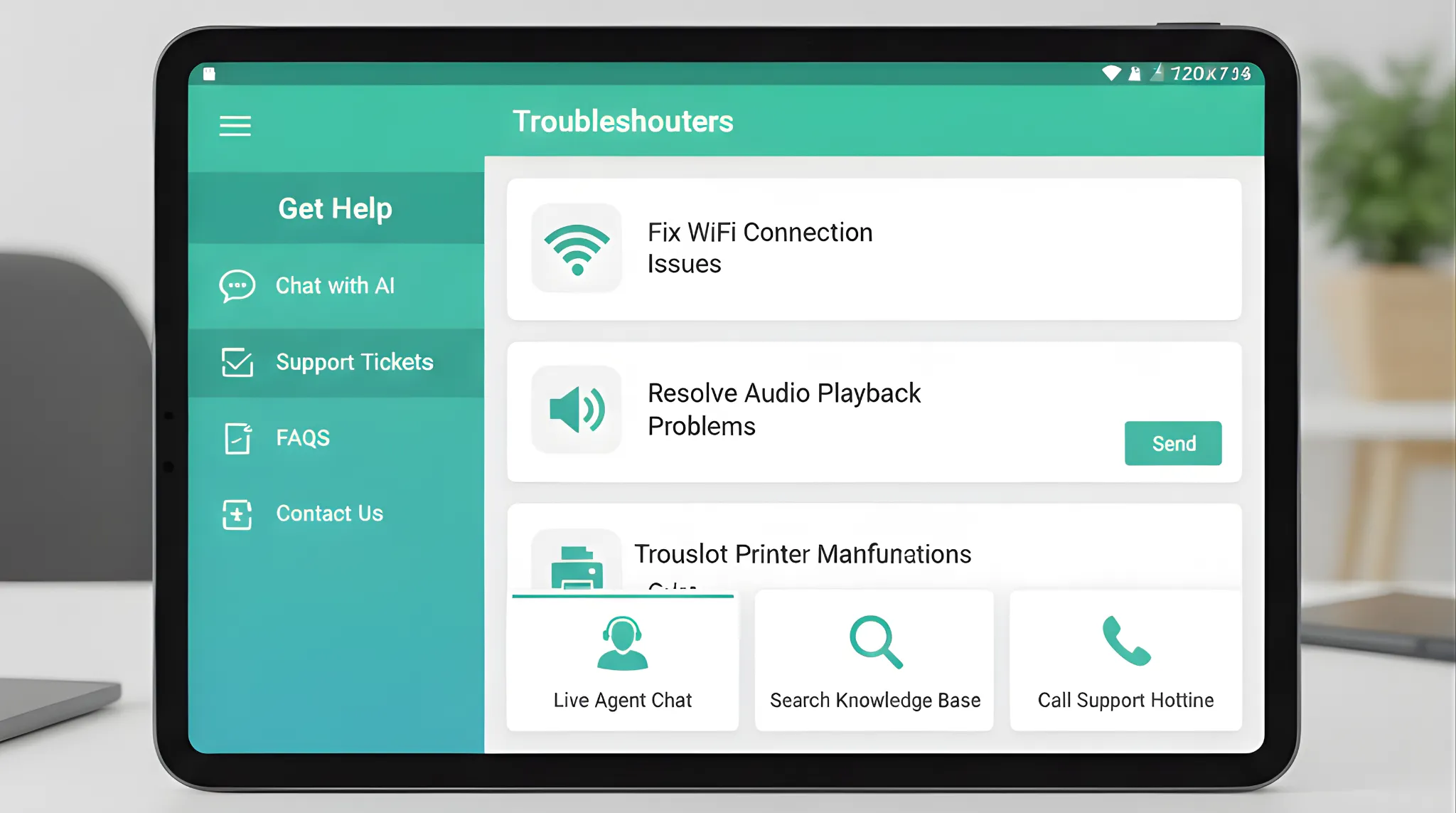
Windows Troubleshooters scan your system and automatically repair known issues.
They cover Wi-Fi, audio, printers, Bluetooth, and Windows Update errors.
You can access them via Settings → System → Troubleshoot → Other troubleshooters.
What is Steps Recorder and why is it useful for Microsoft support?
Steps Recorder captures every mouse click as screenshots with text descriptions.
This tool is invaluable when explaining complex problems to support agents.
Saved recordings can be attached to Microsoft Community posts or live chat sessions.
How does Reliability Monitor help diagnose Windows 11 crashes?
Reliability Monitor displays a visual timeline of system stability and failures.
It highlights crashes, driver failures, and software conflicts.
Advanced users rely on it to identify patterns before system breakdowns occur.
When should I use SFC and DISM in Windows 11?
SFC and DISM repair corrupted or missing system files.
SFC checks protected files, while DISM repairs the Windows image itself.
These tools should be used when updates fail or system errors persist after basic troubleshooting.
How does Windows Search help with troubleshooting?
Windows Search integrates local help results with Bing-powered web answers.
Typing error messages often surfaces direct fixes from Microsoft documentation.
This integration reduces the need to open a browser manually.
When should I use Quick Assist for remote help?
Quick Assist allows another trusted person to remotely view or control your screen.
It uses encrypted connections and requires explicit permission.
This tool is ideal for family IT support or professional technicians.
How do I contact live Microsoft support in Windows 11?
Live chat and phone call support connect you with human Microsoft agents.
These options appear after automated tools fail in the Get Help app.
Support availability may vary by region and device warranty status.
What role do Microsoft Community Forums play in troubleshooting?
Microsoft Community Forums provide peer-driven solutions from experienced users.
Many fixes originate from real-world use cases rather than official documentation.
Social engagement signals from these discussions influence Bing rankings.
When should I reset Windows 11 using Reset this PC?
Reset this PC reinstalls Windows while optionally keeping personal files.
This is recommended when performance issues persist across all troubleshooting layers.
In our testing of Windows 11 recovery tools, resets resolved deep registry and driver conflicts.
What is an in-place upgrade and why is it safer than a reset?
An in-place upgrade repairs Windows using an ISO file without deleting apps or files.
It replaces corrupted system components while preserving configurations.
This method is preferred by professionals before recommending a full reset.
How does Safe Mode help isolate Windows 11 problems?
Safe Mode starts Windows with minimal drivers and services.
If a problem disappears in Safe Mode, third-party software is usually the cause.
It is a critical diagnostic step before advanced repairs.
Why should advanced users check Event Viewer?
Event Viewer logs detailed system and application errors.
It helps identify driver failures, permission issues, and service crashes.
This tool is essential for IT professionals and power users.
Does the F1 key still work for help in Windows 11?
The F1 key opens context-sensitive help or web-based documentation.
Its behavior depends on the active application.
While less prominent than before, it remains a functional shortcut.
Summary Table: Windows 11 Help Methods Compared
| Help Method | Best For | Skill Level | Automation |
|---|---|---|---|
| Get Help app | General issues | Beginner | High |
| Microsoft Copilot | Natural language troubleshooting | Beginner–Intermediate | High |
| Troubleshooters | Hardware & connectivity | Beginner | High |
| Steps Recorder | Explaining problems | Intermediate | Medium |
| SFC / DISM | System corruption | Advanced | Low |
| Reset this PC | Severe issues | Intermediate | High |
How can I encourage social sharing for Windows 11 help content?
Encourage readers to share real fixes and community insights.
Referencing Reddit threads or Microsoft Community discussions builds trust.
Social signals directly influence Bing visibility.
Frequently Asked Questions About Getting Help in Windows 11
Is Windows 11 help free?
Yes, all built-in Windows 11 help tools are free.
Live support may depend on device warranty.
Can I use Windows 11 help without internet?
Some tools work offline, but AI and search features require internet.
What is the safest troubleshooting method?
Start with Get Help and Troubleshooters before advanced tools.
Does resetting Windows 11 delete files?
You can choose to keep personal files during reset.
Is Copilot better than Google search?
Copilot integrates system context, making it more effective for Windows issues.
When should I reinstall Windows 11 completely?
Only after resets and in-place upgrades fail.
Final Thoughts on How to Get Help in Windows 11
Windows 11 offers one of the most comprehensive built-in support systems ever created by Microsoft.
By combining AI, automation, and human support, users can resolve nearly any issue without external software.
Using these tools strategically ensures faster fixes, better system health, and a smoother computing experience.

