

Quick Summary
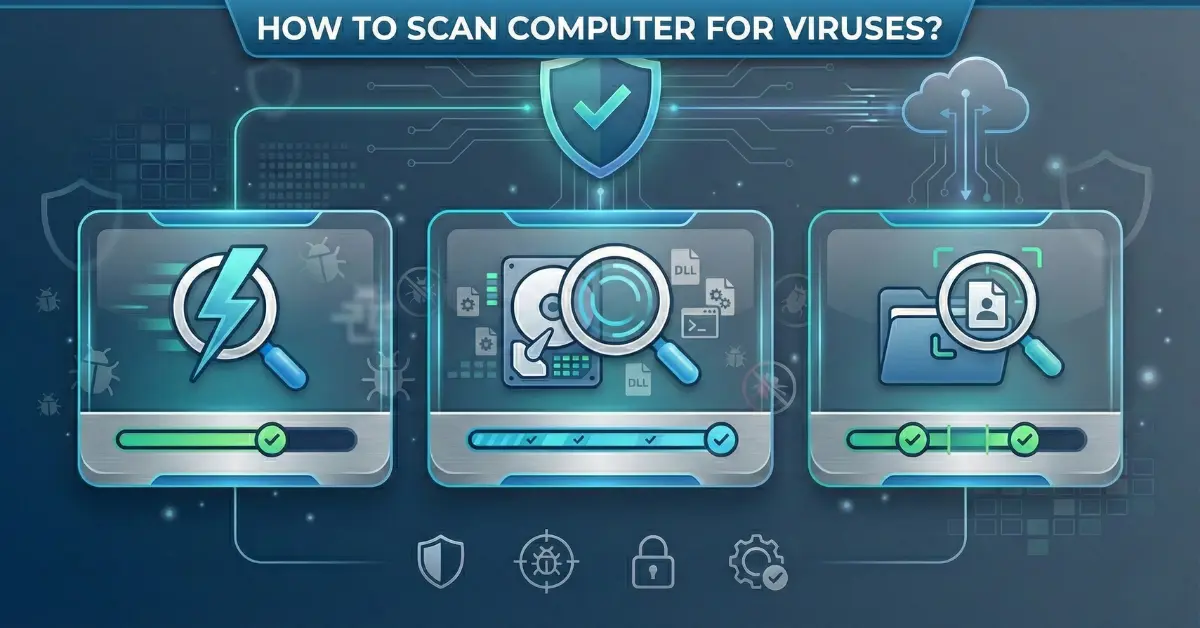
Scanning a computer for viruses involves using security software to examine files, programs, and system areas for malicious code that could compromise performance or steal data. Windows 11 includes Microsoft Defender Antivirus as a built-in solution that performs automatic background checks, while users can also run manual scans through Quick Scan (5-10 minutes), Full Scan (1-3 hours), or Custom Scan options targeting specific folders. Most modern security tools detect, quarantine, and remove threats automatically, the key is knowing which scan to use and when.
Most people ignore virus protection until something goes wrong—slow computer, strange pop-ups, or files disappearing. By then, malware has often been active for weeks, quietly stealing passwords or tracking browsing habits. The real issue is that modern threats operate silently, avoiding detection while accomplishing their goals in the background.
What changed in 2026 is that viruses no longer announce themselves dramatically. They mimic legitimate processes, making regular scanning less about fixing visible problems and more about confirming threats are absent. The challenge is knowing which scan type addresses specific concerns and understanding what gaps remain even after scanning.
Why Windows Built-In Protection Actually Works Now
Windows 11 comes with Microsoft Defender Antivirus, and it’s no longer the weak tool from years ago. Current defender capabilities include:
- Real-time monitoring that watches files as they’re accessed
- Cloud-delivered threat intelligence that updates instantly
- Behavioral analysis that catches new threats based on suspicious activity patterns
- Automatic updates through Windows Update
The practical advantage? Most users no longer need separate antivirus programs. Defender updates automatically, scans run during idle periods without notification, and the deep Windows integration catches system-level changes that third-party software might miss.
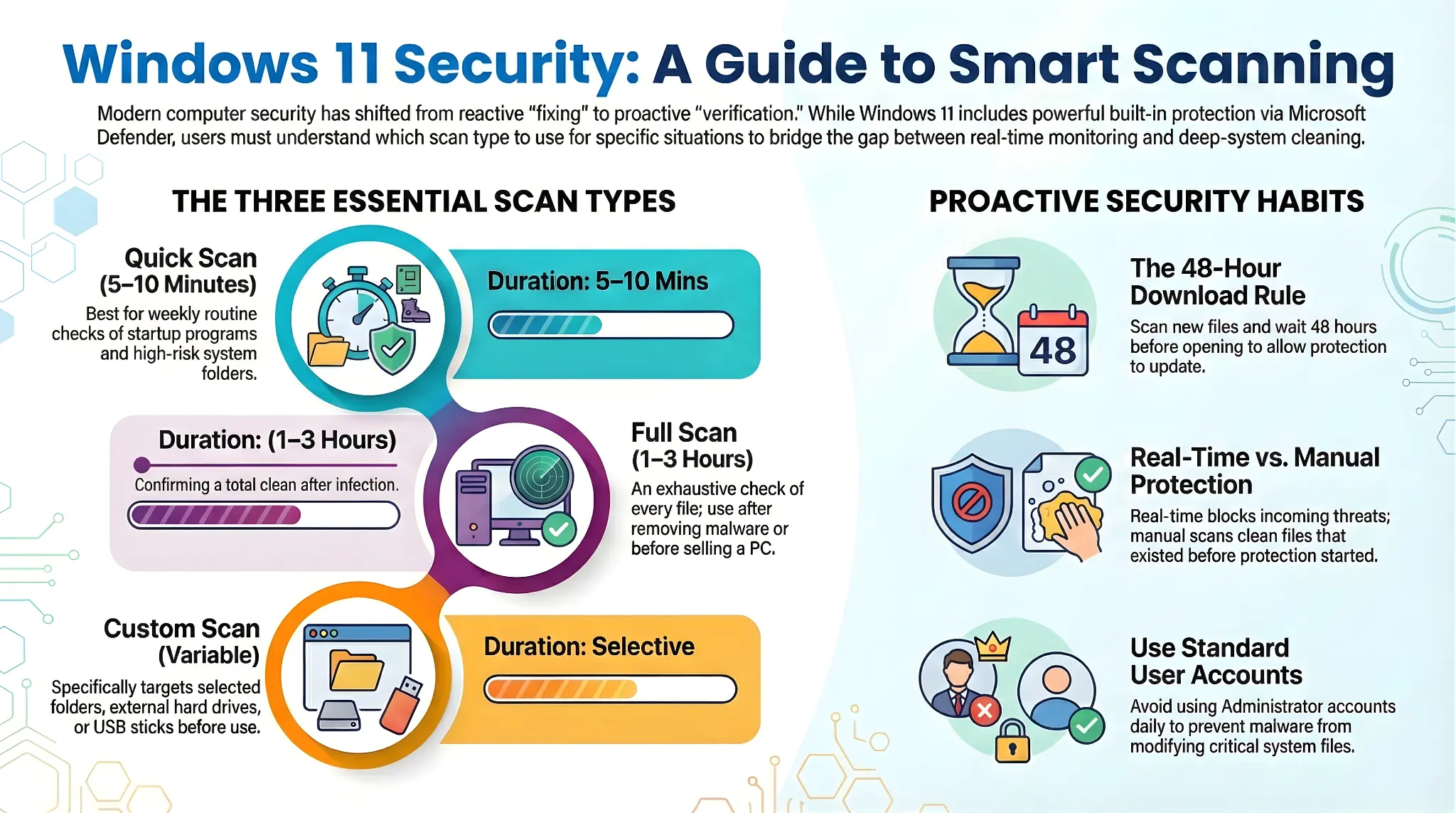
Important distinction: Automatic protection monitors files as they’re accessed or downloaded, blocking threats in real-time. Manual scans examine existing files that may have been infected before protection was enabled. Both serve different purposes—one doesn’t replace the other.
The Three Types of Scans (And When to Use Each)
Quick Scan: Fast Check of High-Risk Areas
What it does: Examines startup programs, system folders, and currently running processes
How long: 5-10 minutes
Best for:
- Regular weekly checks when nothing seems wrong
- Quick verification after downloading a small file
- Routine maintenance scanning
What it misses: Archived files, old downloads, unused program directories
Full Scan: Everything, Everywhere
What it does: Checks every single file on the computer, including compressed archives and temporary files
How long: 1-3 hours (sometimes longer)
Best for:
- Switching from one security tool to another
- After removing malware to confirm it’s completely gone
- Before selling or transferring a computer
- Investigating known exposure to suspicious files
The tradeoff: Time and system resources. Don’t run daily, it’s overkill if real-time monitoring is active.
Custom Scan: Targeted Checking
What it does: Scans specific folders or drives you select
How long: Varies based on selection
Best for:
- Checking USB drives before opening files
- Scanning Downloads folder after questionable downloads
- Examining external hard drives that connected to multiple computers
Step-By-Step: How to Actually Run a Scan in Windows 11
Method 1: Quick Scan (The Fastest Way)
- Open Windows Security
- Click Start button
- Type “Windows Security”
- Click the app when it appears
- Navigate to virus protection
- Click “Virus & threat protection” on the left
- Start scanning
- Click the blue “Quick scan” button
- Progress shows on screen—files examined and any threats found
Pro tip: The scan continues even if you close the window. It runs in the background until done.
Method 2: Full or Custom Scan (More Control)
- Open Windows Security (same as above)
- Access scan options
- Below “Quick scan” button, click “Scan options”
- Choose your scan type:
- Full scan – checks everything
- Custom scan – pick specific folders
- Microsoft Defender Offline scan – for stubborn threats (requires restart)
- For Custom Scans:
- Select “Custom scan”
- Click “Scan now”
- File browser opens
- Navigate to USB drive, Downloads folder, or wherever
- Click “Select Folder”
- Scan starts immediately
What Happens During the Scan
- Progress bar shows files checked and detections
- System might slow slightly during Full scans
- You can still use other programs
- Closing the window doesn’t stop the scan
When Threats Are Found
Automatic actions:
- Threats move to quarantine automatically
- Files get isolated so they can’t run
- Notification appears showing what was found
What you should do:
- Review the threat history (shows all past detections)
- Check quarantine before final deletion (prevents losing legitimate files flagged incorrectly)
- Run another scan after removal to confirm it’s gone
For stubborn threats:
- Use “Microsoft Defender Offline scan”
- Runs before Windows loads
- Removes malware that protects itself while Windows is running
- Requires restart, takes longer, but catches rootkits
What Scanning Can’t Catch (Critical Gaps)
Zero-day exploits: New vulnerabilities not yet documented bypass detection until security companies catch up. Scanning after visiting a compromised site doesn’t guarantee safety if the threat was brand new.
Phishing attacks: Fake websites that steal passwords leave no infected files to detect. The attack happens through legitimate browser connections—scanning won’t help.
Potentially unwanted programs: Adware and borderline-legitimate software sometimes get flagged as low-priority. The scan detects them but leaves removal decision to you.
Social engineering: If someone tricks you into voluntarily installing malware, most scanners assume you meant to do it.
Free vs. Paid: What Actually Matters
Windows Defender is sufficient when:
- You practice safe browsing habits
- You keep software updated
- You avoid downloading from questionable sources
- You’re a home user, student, or remote worker with standard needs
Consider paid software when:
- Managing business data with compliance requirements
- Regularly downloading files from varied sources
- Multiple people use the computer with different security habits
- You want extras: identity theft protection, password managers, VPN services
Top Best 5 Free Software to Scan and Remove Viruses
Microsoft Defender (Built into Windows 11) The most practical choice for most users. Defender now matches paid competitors in detection rates, updates automatically, and integrates deeply with Windows without performance penalties or upgrade nagging. Ideal for home users, students, and remote workers who practice safe browsing habits.
Malwarebytes Free Excels as a secondary scanner that catches threats traditional antivirus misses—particularly adware, browser hijackers, and rootkits. The free version requires manual scanning rather than real-time protection, making it perfect for monthly verification checks alongside Defender. Often finds infection remnants other tools overlook.
Bitdefender Free Provides industry-leading detection using the same engine as their paid products. Extremely lightweight and runs automatically with minimal user interaction. Best for users wanting stronger protection than Defender without extra features or customization options.
Avast Free Antivirus Feature-rich option with real-time protection, scheduled scanning, and Wi-Fi security checking. However, frequent upgrade prompts and past privacy controversies regarding user data collection make it less appealing despite solid detection capabilities.
AVG Free Antivirus Owned by Avast and uses the same detection engine with a slightly different interface. Offers similar features but shares the same aggressive upselling behavior and historical privacy concerns that affect user trust.
Avoid running multiple real-time scanners simultaneously—this creates conflicts and reduces effectiveness rather than improving protection.
Reality check: Third-party tools like Malwarebytes, Bitdefender, and Norton catch some threats Defender misses—but the reverse also happens. Using a secondary scanner occasionally makes sense. Running multiple real-time programs simultaneously causes conflicts and slows performance without improving security.
Beyond Scanning: Building Better Protection Habits
Keep everything updated:
- Windows updates patch security holes attackers actively exploit
- Program updates close vulnerabilities malware uses to gain access
- Updates matter more than most people realize
Verify before clicking:
- Check email sender addresses before opening attachments
- Even if it looks like someone you know (malware spoofs familiar names)
- Three seconds of verification stops many infections
Use standard user accounts:
- Don’t use administrator accounts for daily tasks
- Malware running with restricted permissions can’t modify system files
- Simple configuration change that contains problems effectively
Practice the 48-hour rule for downloads:
- Download files but don’t open immediately
- Run a custom scan on Downloads folder
- Wait for real-time protection to analyze suspicious files
- Most threats reveal themselves within this window
Frequently Asked Questions
How often should I scan my computer? Windows Defender runs automatic quick scans during idle periods, so manual daily scans are unnecessary. Run a full scan monthly or after potential exposure to threats—that’s sufficient for most users.
Can scanning remove all viruses automatically? Most threats get quarantined and removed automatically, but some persistent infections need offline scanning or manual intervention. Always review quarantine actions to avoid deleting legitimate files flagged incorrectly.
Does scanning permanently slow down my computer? No. Scans temporarily use system resources while running, causing slight slowdown. Normal performance returns once scanning completes. Schedule scans during periods when you’re not actively using the computer.
Will a scan check my USB drive? Quick scans typically skip external drives. Use Custom Scan to target USB drives, external hard drives, or network locations before accessing their contents.
What if the scan finds nothing but my computer still acts weird? Run a Full Scan, then try Microsoft Defender Offline scan. If problems persist, the issue might not be malware—could be failing hardware, driver conflicts, or software bugs requiring different troubleshooting.
Should I turn off real-time protection to speed up my computer? Absolutely not. The minor resource use is insignificant compared to the risk of infection. If performance is bad, address the actual cause—insufficient RAM, full storage, or too many startup programs.
What Changes After You Start Scanning Regularly
Regular scanning shifts from reactive troubleshooting to proactive verification. Instead of waiting for symptoms before investigating, periodic checks confirm threats are absent during normal operation. This matters because early detection limits the time malware has to steal information, degrade performance, or spread to connected systems.
The confidence from verified protection status allows focus on productive work rather than constant worry. Scanning becomes routine maintenance like software updates—important but not requiring constant attention or technical expertise.
Bottom line: Protection in 2026 requires understanding that no single tool provides complete security. Combining built-in scanning with safe browsing habits and regular updates creates overlapping layers that together address the majority of realistic threats. The goal isn’t perfect invulnerability—that doesn’t exist—but reasonable confidence that common risks are being managed competently.

