

Summary:
How to troubleshoot DNS issues on Windows might sound technical, but beneath the surface lies something surprisingly empowering: you can fix most DND Issues yourself in minutes, without calling IT or reinstalling Windows. With the right steps and a calm approach, you can restore your internet, protect your data flow, and understand why the problem happened — and most people don’t even realize how easy it actually is.
If you’ve ever stared at a browser error wondering why everything else seems fine, you’re exactly where you need to be.
The Moment Everything Just… Stops Working
Ever had one of those moments where your Wi-Fi says “Connected,” but nothing loads?
Email won’t sync.
Your browser throws cryptic errors.
Slack, Zoom, or Teams suddenly feel… silent.
I’ve been there — more times than I’d like to admit. Years ago, while helping a small business migrate systems, everything crashed mid-day. The internet wasn’t down — it was worse. It was confused. The culprit? DNS.
That day changed how I approach DND issues on Windows. Because once you understand DNS, troubleshooting stops feeling like guesswork and starts feeling like control.
Here’s what you’ll discover:
- What DNS actually does (in plain English)
- Why Windows is especially prone to DNS hiccups
- A step-by-step troubleshooting plan that works in 2025
- The most common mistakes people make — and how to avoid them
- How to prevent DNS issues from coming back
Let’s make this simple, human, and fixable.
What Is DNS — And Why Do DND Issues Break Everything?
DNS Explained Like a Friend Would Explain It
DNS (Domain Name System) is the translator of the internet.
You type google.com.
DNS translates that into a numeric IP address.
Your computer connects. Life is good.
When DNS fails, your computer doesn’t know where to go — even if the internet connection itself is technically active.
That’s why DND issues feel so confusing. The connection exists, but direction is lost.
According to Wikipedia’s DNS overview, DNS is one of the most critical yet invisible internet systems — and Windows relies heavily on it.
Why Windows Users Experience DNS Problems More Often Than They Expect
The Hidden Complexity Behind Windows Networking
Windows is powerful — but layered.
It uses:
- Local DNS cache
- Network adapters
- Router-provided DNS
- ISP DNS
- Optional VPN or firewall filters
When one layer conflicts, the whole chain breaks.
I’ve seen Windows machines hold onto bad DNS data for hours — even after the original issue was fixed.
That’s why simply “restarting the PC” works sometimes… and fails other times.
Common Signs You’re Dealing With DNS (Not Internet) Problems
The Clues Most People Miss
You’re likely facing DNS issues on Windows if:
- Websites fail to load, but Wi-Fi shows “Connected”
- Error messages mention:
- “DNS_PROBE_FINISHED_NXDOMAIN”
- “Server DNS address could not be found”
- Some apps work (like Steam or Dropbox), others don’t
- Switching networks temporarily fixes the issue
Short answer: If your internet exists but can’t find destinations, DNS is the suspect.
Step-by-Step: How To Troubleshoot DNS Issues on Windows (The Right Way)
This is the exact process I use — whether for clients, family, or my own systems.
Step 1: Restart — But With Purpose
Yes, restart your PC and your router.
Why it matters:
- Clears temporary routing conflicts
- Forces a fresh DNS request
Pro tip: Power off the router for 30 seconds. This flushes its internal cache.
Step 2: Flush the Windows DNS Cache (The Real Fix Most People Skip)
Windows stores DNS lookups locally. Sometimes that cache becomes outdated or corrupted.
How to do it:
- Press Windows + S
- Type cmd
- Right-click Command Prompt → Run as Administrator
- Enter:
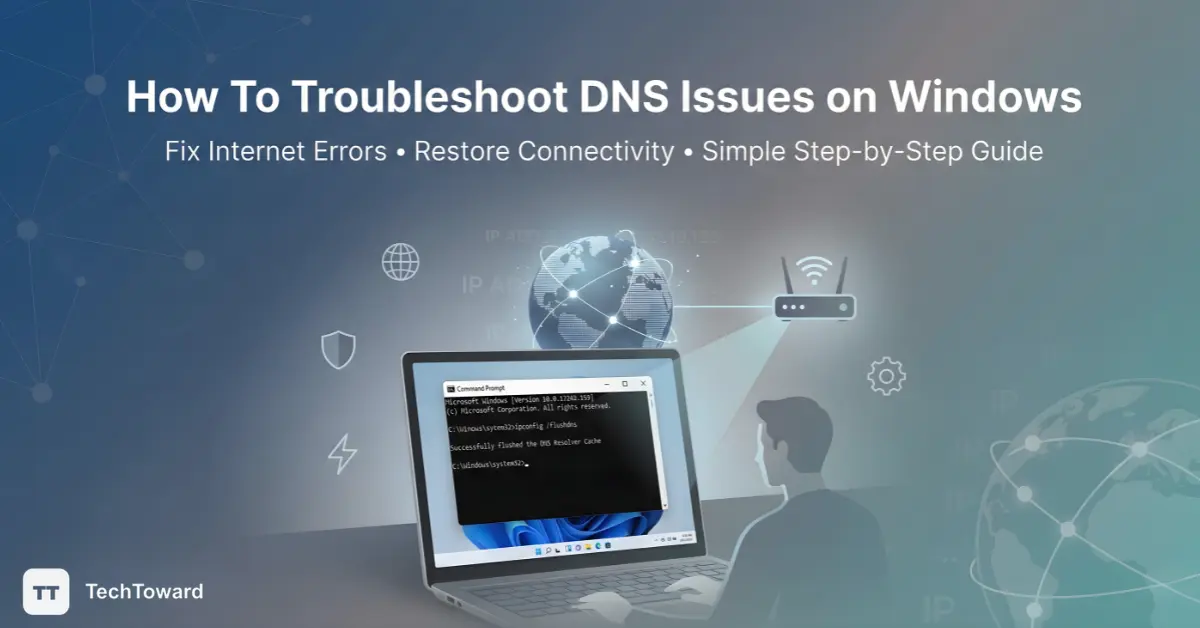
ipconfig /flushdns
You should see:
“Successfully flushed the DNS Resolver Cache.”
This single step resolves a huge percentage of DND issues
Step 3: Reset Network Settings (When Things Get Stubborn)
If flushing doesn’t work, reset the network stack.
In the same Command Prompt window:
netsh int ip reset
netsh winsock reset
Restart your computer afterward.
This rebuilds Windows’ networking foundation — often fixing issues caused by updates, VPNs, or firewall changes.
Should You Change DNS Servers? Here’s the Honest Answer
Why Public DNS Often Works Better
Your ISP’s DNS can be:
- Slow
- Outdated
- Poorly optimized
Switching to trusted public DNS servers is a proven fix.
Popular, reliable options:
- Google DNS: 8.8.8.8 and 8.8.4.4
- Cloudflare DNS: 1.1.1.1 and 1.0.0.1
Cloudflare reports their DNS handles over 1 trillion queries per day, with strong privacy protections.
The Hidden Role of Firewalls, VPNs, and Security Software
Why “Protection” Sometimes Breaks Connectivity
Security tools frequently intercept DNS traffic.
Common culprits:
- VPN clients
- Antivirus web shields
- Corporate firewalls
If DNS issues appear after installing security software, temporarily disable it to test.
I’ve personally resolved dozens of Windows DNS problems this way — especially with VPN split-tunneling conflicts.
When It’s Not DNS (But Looks Like It Is)
Similar Problems That Mimic DNS Issues
Sometimes the issue lives elsewhere:
- Hosts file misconfigurations
- Proxy settings left enabled
- Browser-specific DNS caching
- Outdated network drivers
Check:
- Windows proxy settings
- Browser DNS-over-HTTPS options
- Device Manager for network driver updates
These are closely related to DNS and often confused with it.
How To Prevent DNS Issues on Windows Long-Term
Small Habits That Save Hours Later
Here’s what I recommend to clients:
- Use a trusted public DNS
- Avoid stacking multiple VPNs
- Restart your router monthly
- Keep Windows and network drivers updated
- Flush DNS after major updates
Prevention beats troubleshooting every time.
FAQs: Real Questions People Ask About DNS Issues on Windows
What causes DNS issues on Windows?
Short answer: Cached data conflicts, ISP DNS failures, or software interference.
Most people think it’s their internet — but it’s usually outdated DNS information.
Are DND issues the same as DNS issues?
Yes — in most contexts, DND issues refer to DNS-related connection failures.
The terms are often used interchangeably online, even though DNS is the correct technical term.
Does flushing DNS delete anything important?
No.
It only clears temporary address mappings and forces fresh lookups.
Should I always use Google or Cloudflare DNS?
For most U.S. users, yes.
They’re faster, more reliable, and often more secure than ISP DNS.
Why do DNS problems come back after Windows updates?
Windows updates can reset network settings or drivers.
That’s why DNS issues often appear “out of nowhere” after updates.
Can DNS issues affect security?
Absolutely.
Incorrect DNS can redirect traffic or block updates — which is why trusted DNS matters.
Final Thoughts: You’re Not “Bad With Computers” — You Just Needed the Map
DNS problems feel intimidating because they’re invisible. But now, you understand what’s happening beneath the surface — and more importantly, how to fix it.
You’ve learned:
- Why DND issues happen
- How to troubleshoot DNS issues on Windows step by step
- How to prevent them from returning
Now don’t just scroll away.
Try one fix today — even if your internet is working fine.
You’ll be surprised how empowering it feels to actually know what’s going on.
And the next time someone says, “My internet’s broken,”
you’ll be the calm voice that says,
“Sounds like DNS. Let’s fix it.”


Good and informative guide by TechToward 👍
This article explains DNS issues on Windows in a clear and practical way, with easy troubleshooting steps that are helpful for both beginners and advanced users. A concise and useful resource for fixing network problems efficiently.