

Summary
Knowing how to update software in 2026 is no longer just about getting new features — it is about protecting devices, preserving compatibility, and reducing security risk. Whether updating apps, operating systems, or connected devices, the safest approach combines preparation, timing, and an understanding of automatic vs manual software updates. When handled correctly, updates improve performance and stability; when rushed, they can disrupt workflows or expose data.
Why Software Updates Matter More in 2026 Than They Did Five Years Ago
Software updates used to feel optional. Many home users ignored them unless a device forced a restart. That mindset no longer holds up.
Modern operating systems like Windows 11, macOS, Android, and iOS now function as living platforms. They are continuously patched to address security vulnerabilities, AI integration layers, cloud synchronization systems, and evolving hardware drivers. Updates frequently close zero-day exploits before they are widely weaponized.
What many articles miss is this: updates are not just about security threats from the outside. They also maintain compatibility inside your digital ecosystem. A browser update may break an extension. A productivity suite update may change file compatibility. A system patch may alter how peripherals behave.
Understanding this interconnectedness changes how updates should be approached. It is less about “click update now” and more about managing change responsibly.
The Hidden Risks of Ignoring Updates
Skipping updates may seem harmless — until something breaks.
Outdated systems are more vulnerable to:
- Ransomware attacks
- Credential harvesting exploits
- Driver conflicts
- Performance degradation due to outdated system libraries
Small businesses and remote professionals are particularly exposed. An unpatched machine connected to shared cloud drives can become the weak link in an otherwise secure setup.
However, blind updating carries its own risks. Major operating system releases occasionally introduce compatibility issues with legacy accounting software, printer drivers, or specialized tools. The real solution is not constant updating or permanent delay — it is structured updating.
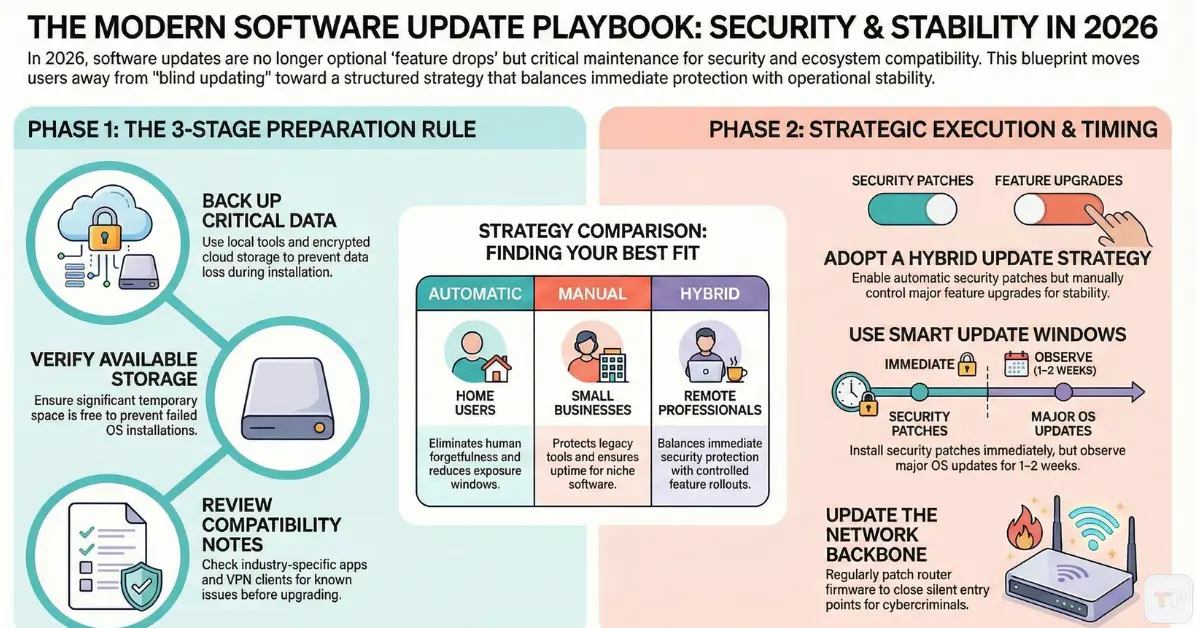
Before Updating Anything: The Three-Stage Preparation Rule
Most update failures are not technical — they are procedural.
A reliable software update guide in 2026 starts with preparation:
1. Back Up Critical Data
Use built-in tools like File History on Windows or Time Machine on macOS. Cloud storage alone is not sufficient if file synchronization corrupts during a failed update.
For businesses, maintaining both a local backup and encrypted cloud backup is considered baseline protection.
2. Check Storage Space
Operating system updates can require significant temporary space. Insufficient storage is a leading cause of failed installations.
3. Review Compatibility Notes
Major updates often publish compatibility advisories. This is especially relevant for:
- Accounting software
- Industry-specific programs
- Older hardware devices
- VPN clients and security tools
This step is frequently overlooked — and it prevents most post-update regret.
How to Update Operating Systems Safely
The method differs slightly by device, but the logic remains consistent.
On Windows Devices
Navigate to Settings → Windows Update → Check for updates.
Windows 11 typically categorizes updates into:
- Security updates
- Quality updates
- Feature updates
Feature updates require more caution, especially for professional workflows. Many businesses delay these for several weeks until stability feedback emerges.
On macOS
System Settings → General → Software Update.
macOS distinguishes between minor patches and major version upgrades. Upgrading from one major version to another should follow compatibility verification with essential applications.
On iPhone and iPad
Settings → General → Software Update.
Ensure at least 50% battery or connected power before initiating.
On Android Devices
Settings → Security & Privacy → Updates (location may vary by manufacturer).
Android fragmentation means update timing varies by device brand. Flagship devices receive patches faster than budget models.
How to Update Apps Without Breaking Workflow
Understanding how to update apps and operating systems together prevents conflicts.
Apps depend on system libraries. Updating apps while delaying the operating system (or vice versa) can introduce instability.
For mobile devices:
- iOS apps update via the App Store.
- Android apps update via Google Play.
For desktops:
- Many apps update automatically.
- Some require manual checks within their settings menu.
Professional recommendation: schedule app updates outside peak work hours if those apps are critical to business operations.
Automatic vs Manual Software Updates: Which Is Better?
This is not a simple yes-or-no question.
Automatic Updates Are Ideal For:
- Home users
- Non-technical users
- Security-focused environments
- Devices handling sensitive data
They reduce exposure windows and eliminate human forgetfulness.
Manual Updates Are Preferable For:
- Small businesses running legacy tools
- Developers testing compatibility
- Professionals using niche industry software
- Systems requiring uptime guarantees
The misconception is that manual updates are “safer.” They are only safer if managed responsibly. Delaying without monitoring security advisories increases risk.
A hybrid strategy works best: enable automatic security patches, manually control major feature upgrades.
Secure Software Update Best Practices in 2026
Cybercriminals increasingly disguise malware as update prompts. Security awareness matters.
Key secure software update best practices include:
- Only update from official system settings or verified vendor websites.
- Avoid pop-up browser “update required” messages.
- Verify digital signatures when downloading software manually.
- Use a secure network connection (avoid public Wi-Fi during updates).
- Enable device encryption before system upgrades.
One overlooked detail: firmware updates for routers and smart home devices are often ignored. These devices can become silent entry points if unpatched.
Fix Software Update Problems Without Panic
Even with preparation, issues can arise.
Common problems include:
- Update stuck during installation
- Device boot loop
- Applications crashing after update
- Wi-Fi or Bluetooth malfunction
The most important action is patience. Interrupting updates mid-installation causes more damage than waiting.
If a device fails to boot:
- Use built-in recovery modes.
- Restore from backup.
- Check official support pages for known patch issues.
In many cases, stability patches follow shortly after major releases. Waiting 24–72 hours before installing a large feature update often avoids early bugs.
The Overlooked Factor: Timing and Update Cadence
Few guides address timing strategy.
There are three smart update windows:
- Immediately for emergency security patches.
- After short observation (1–2 weeks) for major OS updates.
- During scheduled maintenance windows for business devices.
This cadence balances protection with operational continuity.
Remote professionals managing multiple devices should align update cycles across laptops, phones, and tablets to prevent compatibility mismatches with shared productivity tools.
Updates Beyond Computers: Smart Devices and IoT
In 2026, software updates extend beyond laptops and phones.
Routers, smart thermostats, printers, and even cameras require firmware patches. Neglecting these creates security gaps.
Router firmware updates, in particular, protect against network-level exploits. Logging into the router’s admin interface periodically to check for updates remains a best practice for home offices.
Many users focus solely on visible devices while overlooking the network backbone.
When Not to Update Immediately
This is where expert judgment matters.
Delaying may be reasonable when:
- Running mission-critical software without confirmed compatibility.
- Using older hardware nearing end-of-support.
- Operating in environments where downtime is unacceptable.
However, permanent avoidance is not sustainable. Eventually, unsupported systems stop receiving security patches altogether.
The smarter strategy is controlled adoption — not resistance.
A Practical Step-by-Step Framework for Any Device
For readers seeking a universal approach, the safest sequence is:
- Back up important data.
- Verify storage space.
- Review compatibility notes.
- Confirm internet stability.
- Install update.
- Restart device fully.
- Test essential apps immediately after.
This structured process dramatically reduces update-related disruption.
Frequently Asked Questions
1. How often should software be updated?
Software should be updated as soon as security patches are released, while major feature updates can wait one to two weeks for stability confirmation. This approach balances safety and reliability.
2. Is it safe to use automatic updates?
Yes, automatic updates are generally safe and reduce vulnerability exposure. For business-critical systems, combining automatic security patches with manual feature updates provides better control.
3. What causes software updates to fail?
Insufficient storage, unstable internet connections, corrupted system files, and incompatible drivers are the most common causes. Preparing the device beforehand prevents most failures.
4. Can updating software delete files?
Proper updates do not delete personal files, but failed installations or system corruption can create data loss risks. Maintaining backups eliminates this concern.
5. Should smart home devices be updated too?
Yes, firmware updates for routers and IoT devices close security gaps. Ignoring these updates can expose the entire home or office network.
The Real Goal Is Stability, Not Just “Being Up to Date”
Understanding how to update software correctly is less about chasing the newest version and more about maintaining digital stability. Updates protect systems, ensure compatibility, and support performance — but only when applied thoughtfully.
For home users, enabling automatic security updates often provides peace of mind. For remote professionals and small businesses, controlled rollout and backup discipline are essential.
The most informed approach treats updates as part of regular digital maintenance — similar to locking doors, backing up data, and monitoring network security. When handled with preparation and awareness, software updates become a safeguard rather than a disruption.
In 2026, that shift in mindset makes all the difference.

