

Summary
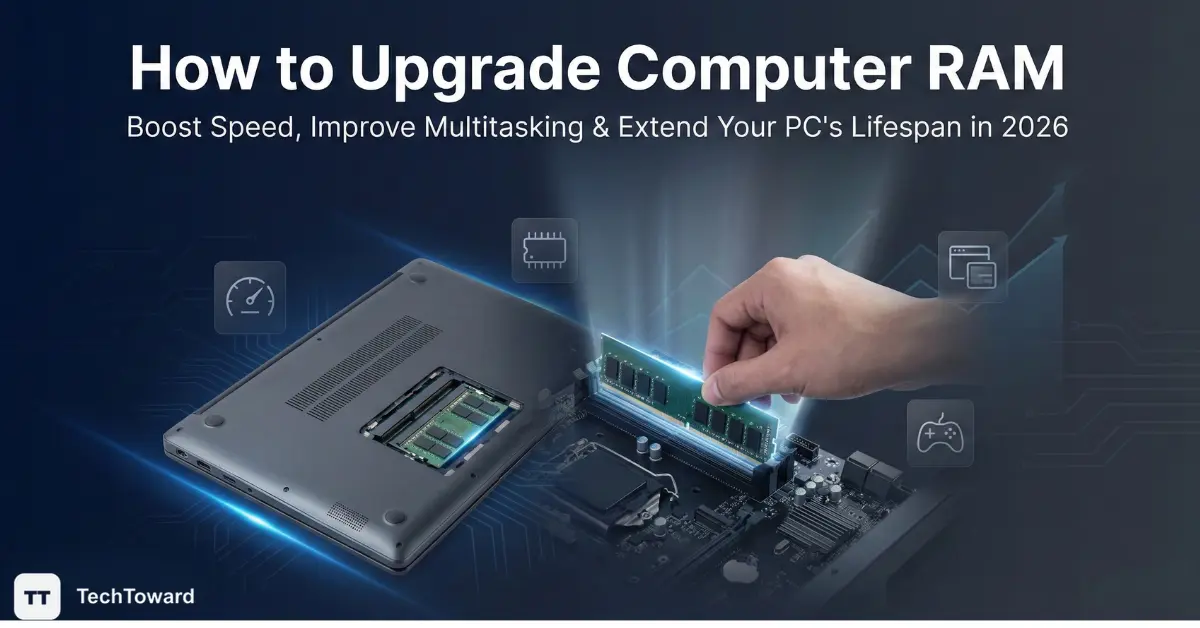
Upgrading computer RAM is one of the most effective ways to improve speed, responsiveness, and multitasking without replacing the entire system. When done correctly, it can reduce lag, improve gaming performance, and make everyday tasks feel noticeably smoother. The key is choosing compatible memory, understanding system limits, and installing it safely.
When a Computer Feels “Slow,” the Real Problem Isn’t Always the Processor
Many users assume a sluggish computer means it’s time for a new device. In reality, limited memory is often the hidden bottleneck. Applications today—especially browsers, video conferencing tools, creative software, and modern games—consume far more memory than they did just a few years ago.
A system with insufficient RAM struggles to keep active tasks in fast-access memory. Instead, it shifts data to the storage drive, which is significantly slower. This process, known as paging, is why systems freeze when too many programs are open.
Understanding how to upgrade computer RAM allows users to extend a machine’s lifespan by several years—often at a fraction of the cost of a new PC.
What most guides overlook is this: memory upgrades are not just about “more is better.” They are about balance, compatibility, and realistic performance expectations.
How to Know If RAM Is Actually the Bottleneck
Before opening a computer case or buying new memory, it’s important to confirm that RAM is the limiting factor.
Common signs include:
- Frequent system slowdowns when multitasking
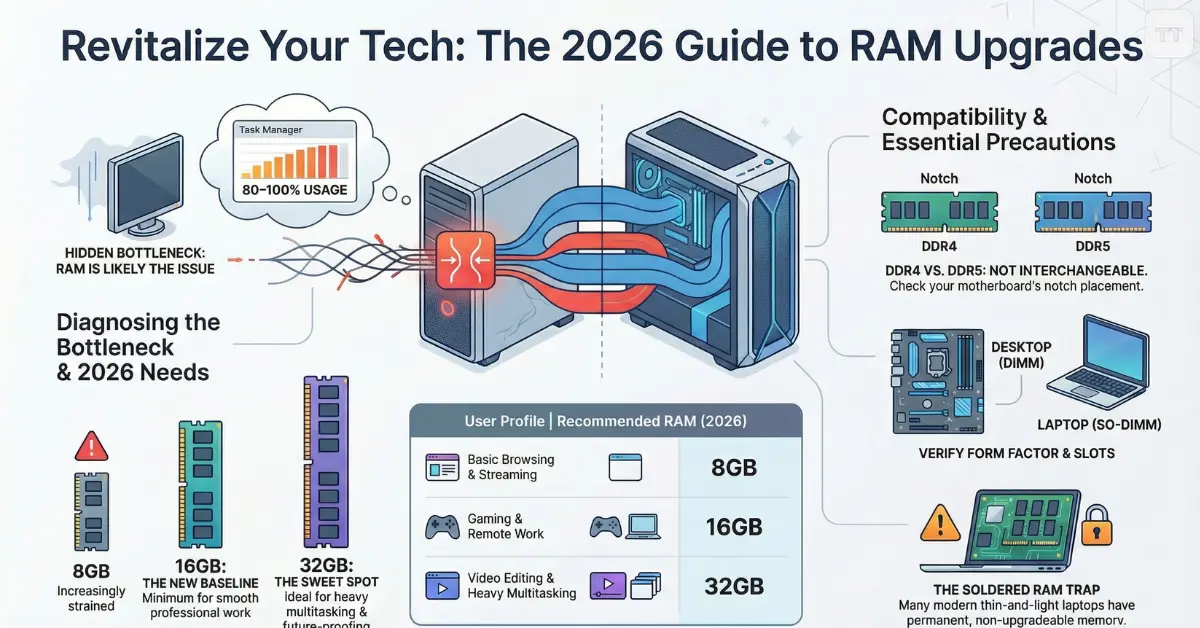
- High memory usage (80–100%) in Task Manager or Activity Monitor
- Browser tabs reloading when switching between them
- Games stuttering even when GPU usage is moderate
- System freezing during video calls or editing sessions
However, if CPU usage is consistently maxed out or storage is nearly full, upgrading memory may not deliver meaningful improvement. This is where judgment matters: RAM upgrades help most when memory usage is consistently high—not when other components are the real constraint.
For home users and students, 8GB systems are increasingly strained. For gamers and remote professionals, 16GB is now closer to a baseline than a luxury.
How Much RAM Do You Need in 2026?
Memory requirements have shifted noticeably over the past few years. Operating systems and background services alone consume more RAM than they once did.
Here is a realistic breakdown for 2026:
- 8GB – Entry-level use: basic browsing, streaming, light office work. Increasingly limiting.
- 16GB – Recommended minimum for most users. Smooth multitasking, gaming, remote work.
- 32GB – Ideal for video editing, heavy multitasking, large spreadsheets, virtual machines.
- 64GB+ – Specialized workflows: 3D rendering, professional media production, advanced simulations.
The common misconception is that doubling RAM always doubles performance. In practice, the improvement is most noticeable when moving from insufficient memory to adequate memory. Jumping from 16GB to 32GB, for example, may show little difference unless workloads demand it.
For most households and small businesses, 16GB or 32GB offers the best long-term value.
Check RAM Compatibility Before Upgrading
One of the most frequent upgrade mistakes is purchasing incompatible memory.
Before buying anything, confirm:
- Maximum supported RAM capacity (motherboard or laptop limit)
- RAM generation (DDR4 vs DDR5)
- Supported speed range (measured in MHz)
- Number of available slots
- Form factor (DIMM for desktops, SO-DIMM for laptops)
The difference between DDR4 vs DDR5 RAM compatibility is especially important. DDR5 offers higher bandwidth and efficiency, but it is not backward compatible with DDR4 motherboards. The physical notch placement is different, and attempting to force installation can damage components.
Another overlooked detail: mixing RAM sticks of different speeds or timings can reduce overall performance to match the slowest module. While systems often function, they may not operate optimally.
Checking compatibility before upgrading prevents wasted time, returns, and potential hardware issues.
Desktop vs Laptop: Why the Upgrade Process Feels Different
Upgrading a desktop is generally straightforward. Most desktop PCs are designed with expansion in mind.
A laptop RAM upgrade guide, however, requires more caution. Some modern laptops have soldered memory that cannot be upgraded. Others allow partial upgrades—one slot soldered, one slot available.
Before proceeding, verify:
- Whether RAM is upgradeable
- How many slots are accessible
- Whether opening the chassis voids warranty
For business ultrabooks and thin-and-light devices, memory may be permanently fixed. In those cases, storage upgrades or software optimization may be the only practical improvements.
This is why checking documentation is not optional—it is essential.
How to Install RAM in a Desktop PC (Step-by-Step)
Upgrading desktop memory is typically a 15–20 minute process.
Step 1: Power Down and Unplug
Shut down the system completely. Disconnect power cables and peripherals. Press the power button briefly to discharge residual electricity.
Step 2: Open the Case
Remove the side panel using screws or a latch mechanism. Place the system on a stable, static-free surface.
Step 3: Locate RAM Slots
RAM slots are positioned near the CPU socket. Most boards use two or four slots.
Step 4: Insert the RAM Module
- Align the notch with the slot key
- Apply firm, even pressure
- Ensure clips snap into place
If installing two sticks, consult the motherboard manual for correct dual-channel placement (often alternating slots). This configuration improves performance.
Step 5: Close and Boot
Reassemble the case and power on. Check system information to confirm the new memory is recognized.
If the system fails to boot, reseating the module resolves most issues.
Laptop RAM Upgrade Guide (Step-by-Step)
Laptop upgrades require more precision but follow similar principles.
Step 1: Power Off and Disconnect
Turn off the device and unplug the charger. If possible, remove the battery.
Step 2: Access the RAM Compartment
Some laptops have a dedicated memory panel. Others require removing the entire back cover.
Step 3: Remove Existing RAM (If Replacing)
Gently push the metal retaining clips outward. The module will pop up at an angle. Slide it out carefully.
Step 4: Install the New Module
Insert at a 30-degree angle, then press down until the clips lock.
Step 5: Reassemble and Verify
Boot the system and confirm memory recognition in system settings.
One important limitation: laptops are more sensitive to incompatible memory. Even slight timing differences can cause boot errors. Always match specifications precisely.
The Performance Difference: What Actually Improves?
Users often expect dramatic speed increases across all tasks. The reality is more nuanced.
RAM upgrades primarily improve:
- Multitasking fluidity
- Gaming consistency (fewer stutters)
- Content creation responsiveness
- Virtual machine performance
- Browser-heavy workflows
They do not significantly improve:
- Raw CPU computation speed
- Rendering times limited by GPU
- Storage transfer speeds
This distinction matters. Memory improves responsiveness, not raw processing power.
For gamers, moving from 8GB to 16GB can eliminate frame drops in open-world titles. For remote professionals, it prevents video call slowdowns while running spreadsheets and browsers simultaneously.
DDR4 vs DDR5: Is Newer Always Better?
DDR5 memory provides:
- Higher bandwidth
- Improved power efficiency
- Greater capacity per module
However, DDR5 typically costs more and may not produce visible performance gains in everyday tasks compared to well-configured DDR4 systems.
For users building or upgrading compatible modern platforms, DDR5 makes sense for future-proofing. But replacing a working DDR4 motherboard solely to access DDR5 rarely delivers proportional value.
The better decision is platform-dependent—not trend-driven. Explained: How Next-Generation RAM Redefines Speed and Efficiency” — a companion piece that expands on memory bandwidth, power efficiency, and architectural advances that influence real-world system performance.
Overlooked Risks and Mistakes
Even simple upgrades carry small but important risks.
- Static discharge can damage components
- Forcing mismatched modules can break slots
- Buying unsupported speeds may prevent boot
- Ignoring BIOS updates can cause compatibility issues
One overlooked detail: some systems require enabling XMP or EXPO profiles in BIOS to achieve advertised RAM speeds. Otherwise, memory runs at lower default speeds.
Skipping this step can leave performance gains unrealized.
When a RAM Upgrade Is Not Worth It
Upgrading memory may not be ideal if:
- The system uses very old processors (pre-2016 era)
- The motherboard supports only low maximum capacity
- The device has soldered RAM
- The cost approaches half the price of a modern replacement system
In aging hardware, investment may be better directed toward a new device rather than incremental improvements.
Understanding when not to upgrade is just as important as knowing how.
Frequently Asked Questions
Is upgrading RAM safe for beginners?
Yes, upgrading RAM is generally safe if compatibility is verified and installation steps are followed carefully. Most issues result from incorrect module selection rather than installation errors.
Can mixing different RAM brands cause problems?
It can. While many systems function with mixed brands, differences in speed and timings may reduce performance or cause instability. Matching specifications is strongly recommended.
Will more RAM increase gaming FPS?
It can improve consistency and reduce stuttering, especially when moving from insufficient memory. However, average FPS is usually more dependent on the GPU and CPU.
How do I check RAM compatibility before upgrading?
Check the motherboard or laptop model specifications for supported capacity, generation, speed, and form factor. Manufacturer documentation provides the most reliable guidance.
Does installing RAM void warranty?
On most desktops, no. On some laptops, opening the chassis may affect warranty coverage. Manufacturer policies vary.
What happens if RAM is installed incorrectly?
The system may fail to boot or produce error beeps. Reseating the module typically resolves the issue.
Final Thoughts: Extending Performance Without Overspending
A memory upgrade remains one of the most practical ways to boost performance safely. It addresses real-world slowdowns caused by modern software demands without requiring a full system replacement.
The most important step is not installation—it is evaluation. When compatibility is confirmed and realistic expectations are set, upgrading RAM can restore responsiveness, improve multitasking, and extend hardware lifespan meaningfully.
For many users in 2026, the difference between replacing a computer and revitalizing it comes down to understanding memory

