Top Windows 11 Tips Every User Should Know in 2026 might sound straightforward, but beneath the surface lies a trove of overlooked tweaks and hidden features that can transform your day-to-day PC experience. With the right little changes, you can save time, boost productivity, and even enjoy a smoother, more personalized Windows experience — and most people don’t even realize how easy it actually is.
Introduction — Maybe You’re Missing These Simple Wins
Have you ever sat down at your PC and thought, “If only Windows felt faster… or smarter… or just more under my control”? Maybe you’ve opened too many apps, juggled messy windows, or wasted time hunting for apps buried in the Start menu.
I used to feel that way too — until I spent time exploring the newer, lesser-known capabilities of Windows 11. I discovered tweaks that cut down my daily friction and turned routine tasks into delightfully easy habits.
In this article, I’ll walk you through the most powerful, yet often ignored, Windows 11 tips every user should know in 2025 — from productivity-boosting layouts to AI-powered shortcuts, from hidden menus to personal customization.
Here’s what you’ll discover:
- How to get more done with better multitasking and organization
- Smart tweaks that speed up your PC and make it feel responsive again
- The new AI and smart features shaping Windows 11 today
- Hidden gems — and little-known settings — that make daily working smoother
Let’s dive in.
The Hidden Truth About Windows 11: You’re Probably Using It Suboptimally
Why Most People Stick to Default — and Miss Out
When most people install Windows 11, they stick with the defaults: centered Start menu, a messy taskbar, single desktop, maybe dark mode on. That’s fine — until tasks start to pile up.
With a few intentional tweaks, Windows 11 becomes far more powerful: better multitasking, smarter workflows, faster boot times, and less friction. The features are there — we just have to consciously activate them.
Productivity & Organization: Snap, Sort, and Declutter
Use Snap Layouts to Multitask Like a Pro
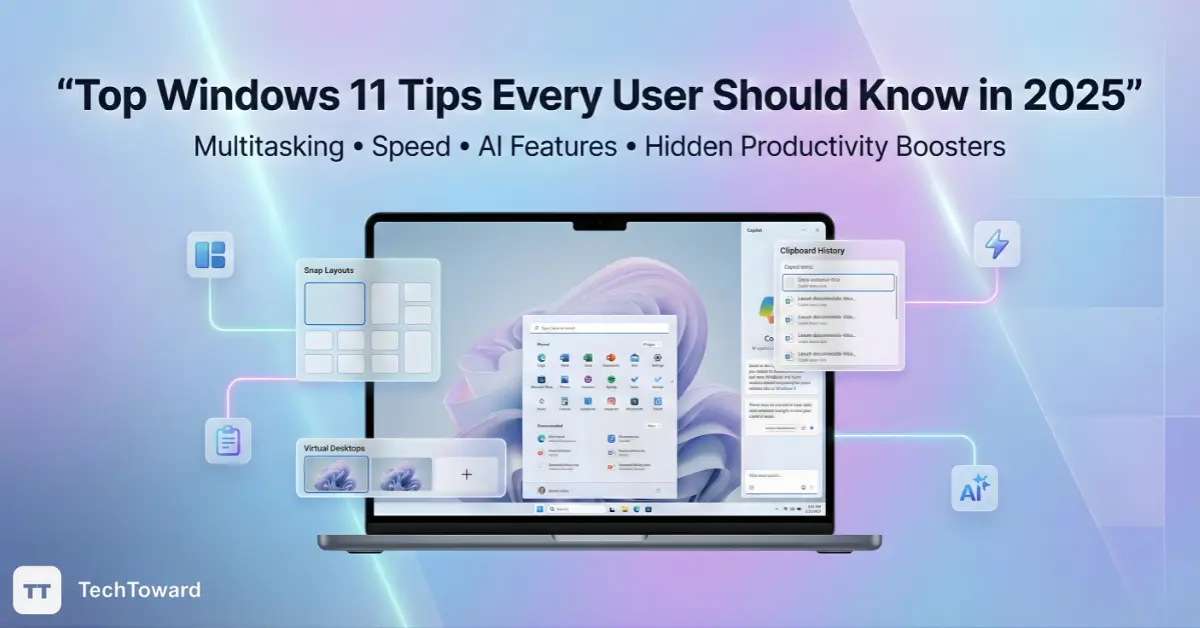
If you often work with multiple windows — browser + notes + PDF, for example — then Snap Layouts is a game-changer. Hover over the maximize button and you’ll see layout grids so you can snap windows side by side, split-screen, or even quadrant-style on large monitors.
For power users, this can dramatically cut down switching time and help you keep context as you juggle tasks.
Virtual Desktops: Separate Work from Play
With Virtual Desktops, you can create separate desktops dedicated to different tasks: work, entertainment, projects, research — whatever. Switch quickly with Win + Tab, or use the taskbar menu. It keeps your digital life organized and clutter-free.
Tip: you can even assign different wallpapers or themes to each desktop to visually signal context (e.g., blue for work, dark for personal, etc.).
Clipboard History: Don’t Just Copy — Curate
Windows 11’s Clipboard History is one of those small features that quietly saves significant time. Hit Win + V and you get a panel showing your recent copied items — text, links, images. You can pin common snippets (email signatures, addresses) for repeated use.
This is especially useful if you often copy/paste between documents, emails, or notes — a huge win for productivity.
Customize the Experience — Make Windows Feel Like Yours
Personalize the Start Menu (Yes — Really)
You don’t have to live with the default Start menu. Windows 11 lets you rearrange, resize, and even group apps into folders on the Start menu — like you do on a phone. This makes frequent apps easier to find and cleans up clutter.
If you drag one app icon over another, you get a folder — simple but effective.
Quick Settings & Widgets: One-Click Access to What Matters
Customize the Quick Settings panel (network, brightness, sound, etc.) so your most-used toggles are just a click away. Also, use Widgets for weather, calendar, news, or your important reminders. It’s like having a mini-dashboard for what matters.
This small personal touch makes Windows feel more like yours — less generic, more efficient.
Dark Mode & Comfort Settings: Eye-Friendly and Modern
Dark mode is more than aesthetic. If you spend long hours in front of the screen, turning on Dark Mode reduces eye strain — especially at night.
Combine it with Night Light (blue-light reduction) for late-night work or reading.
Performance Secrets — Speed, Stability, Smoothness
Trim Startup Apps & Services — Boot Faster, Run Leaner
One of the easiest wins: disable unnecessary startup apps via Task Manager → Startup. Removing bloat from startup makes boot times faster and reduces background resource use.
Also consider using Windows tools — like Storage Sense — to automatically clean out temporary files, freeing disk space.
Optimize for Performance — Game Mode, Power Options & Memory Tweaks
If you’re on a gaming laptop, creative workstation, or just doing heavy tasks, tweak power settings: go to Settings → System → Power & Battery → set to “Best performance”.
For advanced users: some guides suggest disabling Virtualization-Based Security (VBS) and “Memory Integrity” if not needed — this can improve performance (especially for older hardware or gaming).
Quick warning: disabling security-related features may have trade-offs. Only do this if you understand the implications and have alternate security measures.
AI & Smart Tools — The New Era of Windows 11 (2025 Edition)
AI-Powered Copilot & Smart Settings (On Copilot+ PCs)
If you’re using a capable PC, the latest updates bring smarter, more integrated AI features: Copilot can now help with workflows, launch commands, even manage tasks — no need to dig through menus.
Whether writing a blog, grabbing data from a PDF, or organizing files, AI assistance adds speed and convenience.
Modern Tools like the New Recall App: Resuming Work Effortlessly
One particularly handy feature from recent updates is the Recall app (on compatible systems). It surfaces your recent activities — files, web pages, tasks — like a timeline. That means less time hunting for what you were working on last, especially useful for content creators, students, or multitaskers.
Smart File Management & Built-in Tools — No Extra Software Needed
Between the built-in Snipping Tool, clipboard history, smart File Explorer shortcuts, and other default apps, many tasks no longer require third-party tools. Windows 11 ships with more useful functionality out of the box than many people realize.
Hidden Gems & Lesser-Known Tweaks You Probably Haven’t Tried
Legacy Right-Click Menu & Classic Context Menus
By default, Windows 11 shows a simplified right-click menu. But if you prefer the old, full-featured one, you can still access it: right-click → “Show more options,” or press Shift + F10 when right-clicking. Good old options like detailed file operations are still there.
Great for power users used to Windows 10 workflows.
Quick Desktop Access — Shake the Title Bar to Minimize Everything
Here’s a fun one: click and hold the title bar of a window and give it a quick “shake.” All other windows minimize, showing the desktop. Instant declutter when you need a clean desktop fast.
Customize Each Virtual Desktop — Different Backgrounds, Different Moods
You can personalize backgrounds for each Virtual Desktop. So your “work” desktop feels different than your “fun” or “side-project” desktop. Small touch — but psychologically powerful when switching contexts.
Why These “Tips” Actually Matter in 2025
- Time savings add up. Snap Layouts + Clipboard History + better window management can save minutes every hour — that adds to hours saved per week.
- Less mental clutter. Virtual Desktops, organized Start menu, and clean workflows reduce decision fatigue and boost focus.
- Better performance on older hardware. Startup tweaks and power adjustments help even older PCs feel snappier.
- Built-in tools reduce software clutter. No need for extra apps when Windows 11 already gives you Snipping Tool, clipboard history, window organize tools, and more.
- Future-ready with AI & smart workflows. With features like Copilot and Recall (on compatible PCs), Windows 11 is evolving into a more intelligent platform — and early adopters get a productivity edge.
A Step-by-Step Plan for Getting the Most Out of Windows 11 Today
Here’s a quick 5-step plan you can follow right now to supercharge your Windows 11 experience:
- Audit startup: Open Task Manager → Startup → disable what you don’t need.
- Enable Snap Layouts + Virtual Desktops: Practice snapping windows and create at least 2 desktops (work vs leisure).
- Customize Start Menu & Quick Settings: Pin your top apps, group them into folders; personalize Quick Settings.
- Use Clipboard History & Snipping Tool: Get into the habit of using Win + V and take screen captures with ease.
- If hardware permits — try AI features (Copilot/Recall): Explore productivity or creative boosts, and decide what works for you.
FAQ — Things People Usually Ask About Windows 11
Q: Are these tips safe for any PC?
Yes — almost all of them — like Snap Layouts, Virtual Desktops, Clipboard History — are built into Windows 11 by default. The only caution is around disabling security features (like VBS/Memory Integrity) or changing power settings; do that only if you understand the trade-offs.
Q: Will customizing Windows 11 slow it down or cause issues?
No — if anything, some of these tweaks (like disabling startup apps or trimming services) can speed things up. Customization features like virtual desktops or Start menu tweaks have negligible performance impact.
Q: What if I don’t see features like Copilot or Recall in my PC?
Those are tied to system compatibility and Windows version/build. If your PC doesn’t support them, you can still benefit from the core features — Snap Layouts, Clipboard History, Virtual Desktops, personalization.
Q: Can these tweaks improve gaming or heavy workloads on Windows 11?
Absolutely. Disabling unnecessary startup apps, using the High-Performance power plan, and avoiding unnecessary background services can help free up resources for gaming or heavy tasks.
Q: Will using built-in Windows tools replace third-party apps?
For many common tasks — like screen capture, clipboard management, window organization, basic security — yes. Windows 11’s built-in features are robust enough that many users don’t need extra software anymore.
Conclusion — It’s Time to Make Windows 11 Work for You
Windows 11 isn’t just “another OS.” It’s a versatile, evolving platform — especially in 2025, with built-in tools and AI features that can adapt to how you work, play, or create.
By applying even just a few of these tips — snapping layouts, using virtual desktops, cleaning up startup apps, embracing clipboard history — you can turn your PC into a smoother, smarter tool that serves you rather than frustrates you.
Don’t just scroll away. Try some of these now — see how they change the way you use Windows. Once you experience the difference, you’ll wonder how you ever worked without them.