Summary
The Windows 11 KB5077181 update is the February 2026 cumulative security release that delivers critical fixes, stability improvements, and servicing stack refinements for supported versions of Windows 11. For most home users, installation is recommended due to security hardening. For IT administrators and managed environments, validation is advised first to assess compatibility with enterprise tools, drivers, and custom configurations.
Why This February 2026 Update Matters More Than It Looks
Every monthly cumulative update appears routine—until one exposes a vulnerability that attackers were already probing. The February 2026 release, widely referenced as the Windows 11 security update February 2026, arrives at a time when zero-day exploitation cycles are shortening and endpoint security is increasingly dependent on layered defenses rather than perimeter controls.
Most coverage of cumulative updates stops at listing changes. What often goes unexamined is how those changes interact with real-world deployments: mixed hardware fleets, legacy drivers, remote work endpoints, virtualized desktops, and managed security policies. KB5077181 is not a feature-heavy release, but its impact depends entirely on deployment context.
For home users, the decision is straightforward. For enterprises and MSPs, the calculation is more nuanced.
What KB5077181 Actually Delivers
At its core, this Windows 11 cumulative update 2026 package consolidates security patches, reliability fixes, and previous servicing improvements into a single install. Cumulative updates replace older patches rather than stacking indefinitely, simplifying compliance and device state consistency.
The KB5077181 patch notes highlight several categories of change:
- Security hardening across the Windows kernel and core services
- Improvements to authentication flows and credential handling
- Fixes for stability issues affecting certain hardware configurations
- Servicing stack enhancements to improve future update reliability
Unlike feature updates, cumulative releases focus on tightening and correcting the existing system rather than introducing new user-facing capabilities. That distinction is critical. Performance changes, if any, are typically indirect—emerging from bug fixes rather than deliberate optimization.
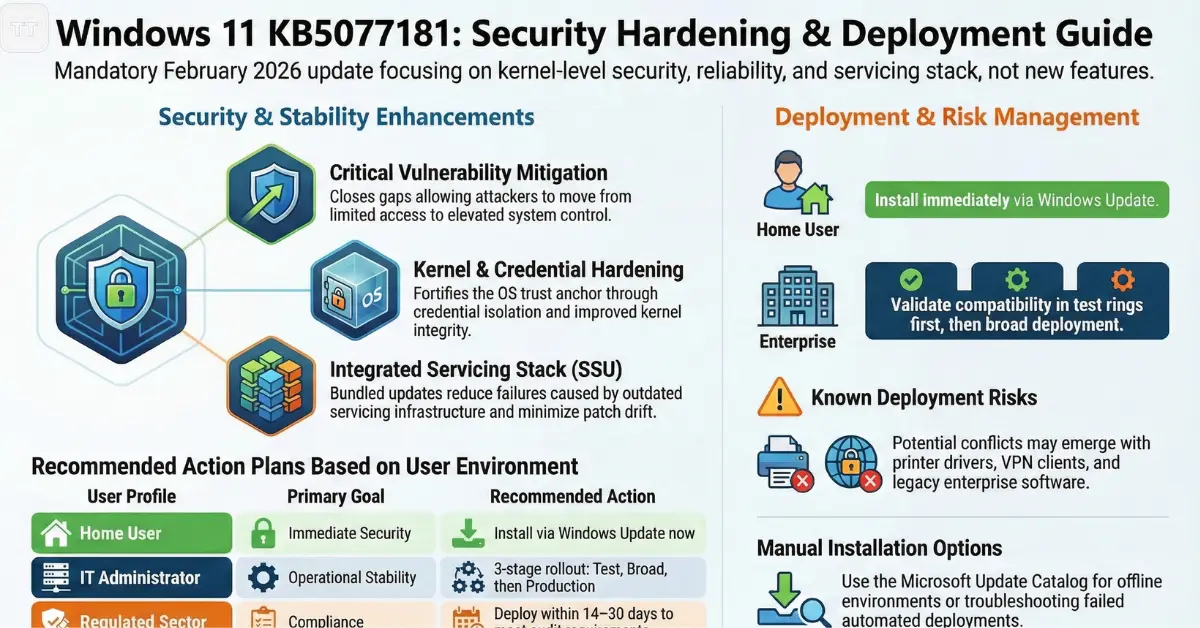
One overlooked detail is the servicing stack update (SSU) integration. Modern Windows releases bundle SSUs directly with cumulative packages, reducing the risk of update failures caused by outdated servicing infrastructure. For IT teams managing thousands of endpoints, this silent reliability improvement reduces patch drift and compliance gaps.
Security Fixes: The Real Core of This Release
Security updates are often described in abstract terms—“addresses vulnerabilities.” The meaningful question is: what kind of vulnerabilities?
February’s release addresses privilege escalation, remote code execution vectors, and information disclosure flaws within system components. In practice, this means closing gaps that could allow an attacker to move from limited user access to elevated control, particularly in environments where phishing remains the initial entry point.
The practical implication is this: even if an endpoint is protected by endpoint detection and response (EDR) tools, unpatched OS-level vulnerabilities increase post-compromise risk. The operating system remains the trust anchor.
For enterprises in regulated sectors across the US, UK, EU, and Australia, deferring security updates increases audit exposure. Many compliance frameworks expect patch cycles within 14 to 30 days for critical vulnerabilities. Delaying without documented risk assessment can become a governance issue, not just a technical one.
Stability and Reliability Improvements: Subtle but Significant
Beyond security, KB5077181 known issues and fixes include corrections for system crashes under specific workloads and improved compatibility with certain drivers.
These stability refinements often matter more in business environments than at home. For example:
- Systems running virtualization layers
- Machines joined to hybrid Azure AD environments
- Devices using advanced disk encryption or third-party endpoint agents
In these contexts, minor OS inconsistencies can cascade into authentication delays, policy sync failures, or login loops.
One insight frequently missed: cumulative updates can quietly resolve performance anomalies that users attribute to hardware aging. A memory management fix or driver interaction correction can stabilize systems that previously appeared unreliable.
That said, not all environments experience improvement immediately. Complex deployments may expose new edge-case conflicts.
Known Issues and Deployment Risks
No update is risk-free. The KB5077181 known issues and fixes section indicates that certain configurations may encounter temporary problems, particularly where older drivers or specialized enterprise applications are involved.
Common categories of post-update issues in cumulative releases include:
- Printer driver conflicts
- VPN client incompatibilities
- Audio device disruptions
- Group Policy processing delays
The misconception is that updates “break systems.” In reality, they expose latent incompatibilities between outdated software and a modernized OS baseline.
For home users running standard configurations, risk remains low. For IT administrators managing legacy accounting software, custom line-of-business tools, or aging hardware drivers, validation in a test ring remains prudent.
A disciplined deployment model typically follows this sequence:
- Test ring (IT and pilot users)
- Broad internal rollout
- Full production deployment
Skipping staged rollout saves time but increases recovery cost if rollback becomes necessary.
Performance Impact: Should Users Expect Slowdowns?
Cumulative updates rarely aim to improve raw performance, but they can influence it indirectly. Security mitigations—particularly those affecting memory handling or process isolation—may introduce marginal overhead.
For modern hardware meeting Windows 11 baseline requirements, the impact is generally negligible. On older systems barely meeting TPM, CPU, and RAM thresholds, some users may perceive slight responsiveness differences after major security hardening updates.
However, the more common scenario involves perceived slowdown due to post-update background tasks. Indexing, telemetry processing, and security revalidation processes can temporarily consume system resources. These typically normalize within hours.
The critical distinction: temporary post-install activity should not be confused with permanent performance degradation.
Should Home Users Install KB5077181 Immediately?
For most home users, the answer is yes.
Security updates close vulnerabilities that are actively researched by threat actors. Delaying without a specific compatibility concern increases risk unnecessarily. Windows Update installs cumulative packages automatically unless paused, and this default behavior aligns with best security practice.
The only reasonable pause scenario for home users involves mission-critical activity—such as live broadcasting, financial processing deadlines, or academic examinations—where a restart window would be disruptive.
Outside of timing concerns, installation is strongly advisable.
Enterprise & MSP Perspective: When Immediate Installation Isn’t Always Ideal
Enterprise environments operate under different constraints.
Managed service providers and IT departments must consider:
- Application compatibility
- Driver validation
- Regulatory documentation
- Change management policies
- Rollback planning
Immediate installation across thousands of endpoints without validation can create operational risk that outweighs short-term security urgency—unless the update addresses actively exploited zero-day vulnerabilities.
A balanced approach involves:
- Reviewing the official KB5077181 patch notes
- Testing in a controlled environment
- Monitoring early adoption feedback
- Deploying through managed update channels such as Windows Server Update Services or Microsoft Intune
In highly sensitive sectors—finance, healthcare, defense contracting—rapid deployment remains critical. In stable internal business networks with layered security controls, short validation windows are acceptable.
The key is intentionality, not delay by default.
How to Install KB5077181 Manually
Most systems receive updates automatically via Windows Update. However, there are scenarios where manual installation becomes necessary—offline environments, air-gapped systems, or failed automated deployments.
To install KB5077181 manually:
- Open Settings → Windows Update
- Select Check for updates
- If available, choose Download & install
For offline or controlled deployments, the update package can be downloaded from the Microsoft Update Catalog and installed using the standalone installer file.
Before manual installation in enterprise contexts, administrators should:
- Verify OS build compatibility
- Confirm architecture (x64 vs ARM64)
- Ensure sufficient disk space
- Create a restore point or system image backup
Manual installation is typically reserved for troubleshooting or staged enterprise rollout scenarios.
The Bigger Picture: Cumulative Updates and Windows 11’s Security Trajectory
Windows 11’s update model continues to emphasize security-first development. Compared to earlier Windows generations, cumulative packages now integrate deeper system hardening measures, especially around credential isolation and kernel integrity.
The broader trend is clear: operating systems are becoming continuously fortified platforms rather than periodically upgraded products.
That shift carries tradeoffs:
- Faster security response cycles
- Increased reliance on consistent patching
- Reduced tolerance for outdated drivers
Organizations resistant to regular patching cycles increasingly find themselves exposed—not because Windows is unstable, but because the ecosystem evolves rapidly.
This February 2026 release reinforces that reality. Staying current is no longer optional hygiene; it is operational resilience.
Overlooked Consideration: Update Fatigue and User Behavior
One subtle risk rarely discussed is update fatigue. Frequent prompts and restarts can lead users to delay or disable updates, especially in home environments.
Security posture is not purely technical—it is behavioral.
Clear communication from IT teams, predictable maintenance windows, and transparent explanation of update purpose reduce resistance. In managed environments, automated enforcement paired with user education remains the most sustainable model.
Ignoring user behavior leads to shadow IT workarounds, which create larger security blind spots than delayed patch cycles.
Frequently Asked Questions
Is the Windows 11 KB5077181 update mandatory?
Yes, it is a cumulative security update and will eventually install automatically unless updates are paused. Delaying is possible temporarily, but long-term deferral increases security risk.
Does KB5077181 improve performance?
Not directly. It primarily addresses security and reliability issues, though some users may notice improved stability if previous bugs affected their system.
Can KB5077181 cause compatibility issues?
It can in rare cases, especially with outdated drivers or legacy enterprise software. Testing in managed environments helps minimize disruption.
How long does installation take?
On most modern systems, installation takes 5–20 minutes, depending on hardware speed and whether a restart is required. Enterprise deployments may vary based on network distribution methods.
What should administrators check before deployment?
Administrators should review official patch documentation, test in a pilot environment, verify application compatibility, and ensure rollback plans are in place before broad rollout.
Final Assessment: Install Now or Wait?
For home users, installing the Windows 11 KB5077181 update promptly is the responsible choice. The security protections outweigh minimal risk.
For enterprises, the correct decision depends on environment complexity. Immediate deployment makes sense when vulnerabilities are critical or actively exploited. Short validation cycles make sense when operational stability is paramount.
The deeper insight is this: cumulative updates are no longer optional enhancements. They are integral to maintaining system trust, compliance posture, and operational continuity.
In 2026, security resilience is built month by month. Decisions about updates are not merely technical—they define how prepared an organization or individual remains against evolving threats.